
4. First Ladder program
4. First Ladder program
You build a small program on the project from page 3, compile it, upload it
to the Node UIO and watch it run:
- a switch on DI1 turns a lamp on DO1 on and off;
- a switch on DI2 starts a pump on DO2, but only after it has been on
for 5 seconds.
Wiring
Wire a switch to each of DI1 and DI2, and a lamp or a relay to each of DO1
and DO2. The Node UIO's wiring guide in the
modbee-node-uio repository
shows how inputs and outputs connect:
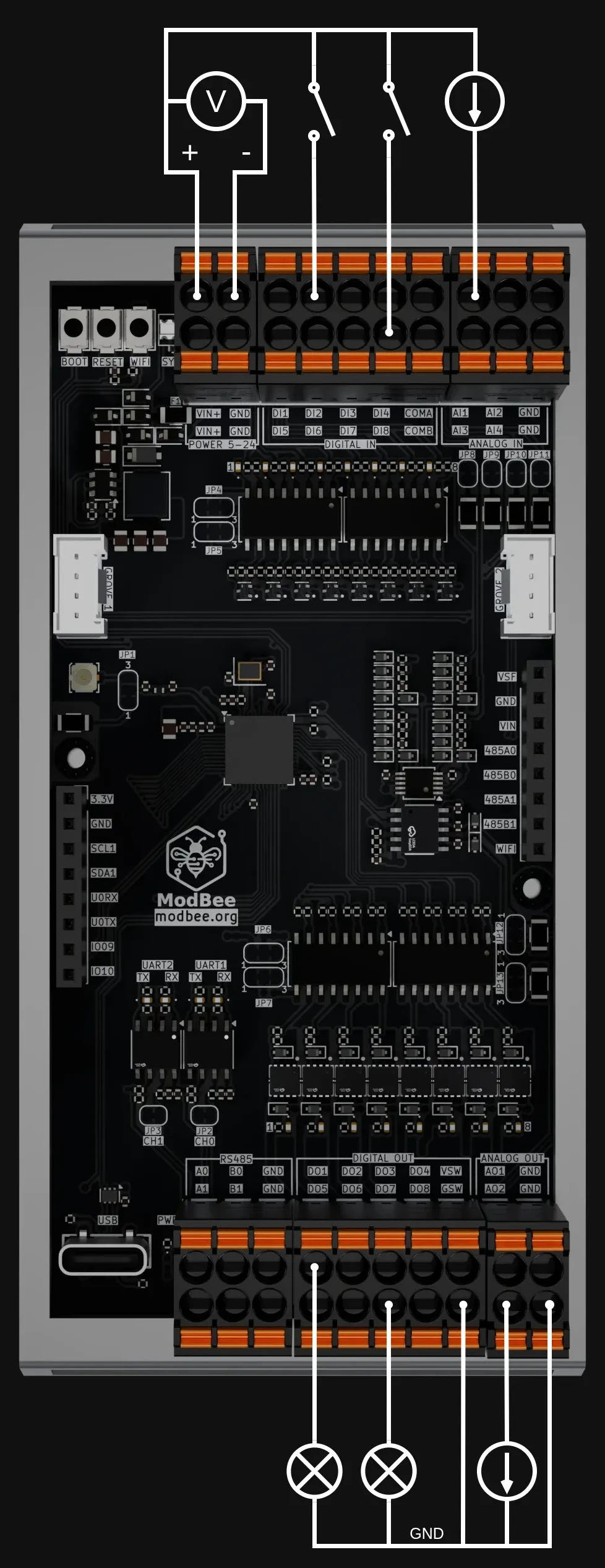
Connect the board's 5–24 V DC supply as well as the USB-C cable. USB-C
alone runs the processor, the upload and the debugger, but not the I/O: the
outputs and the analog outputs are powered from the supply, and the switches
on the inputs need it too.
The status LED shows green when the board's I/O has started, and red when
it has not. If it is red, check the supply and press Reset on the board:
the board checks its I/O once, when it starts.
You can build and compile the program without a board. You only need the
Node UIO on USB-C for the upload.
Ladder in one minute
A Ladder program is a list of rungs, run from top to bottom on every
scan. Each rung reads left to right, like an electrical circuit:
- a contact
| |passes power when its variable is on; - a coil
( )switches its variable on while power reaches it; - a block does more, such as a timer, or reading the board's inputs.
The program you will build has five rungs:
| Rung | Does |
|---|---|
| 1 | UIO block Board: brings the board up and exchanges the I/O on every scan |
| 2 | DIGITAL_IN block Inputs: the eight digital inputs, Inputs.DI01 to Inputs.DI08 |
| 3 | Contact Inputs.DI01 drives coil Lamp |
| 4 | Contact Inputs.DI02 starts the 5 s timer PumpDelay, which drives coil Pump |
| 5 | DIGITAL_OUT block Outputs: Lamp to DO1 and Pump to DO2 |
The order matters. UIO comes first. Then the blocks that read inputs, then
your logic, and the blocks that drive outputs come last. That way, every scan
works on one consistent picture of the inputs.
Rung 1: the board
-
Open the program main from the project tree, then click
Create new rung (the + at the right). An empty rung appears, with
the power rails left and right.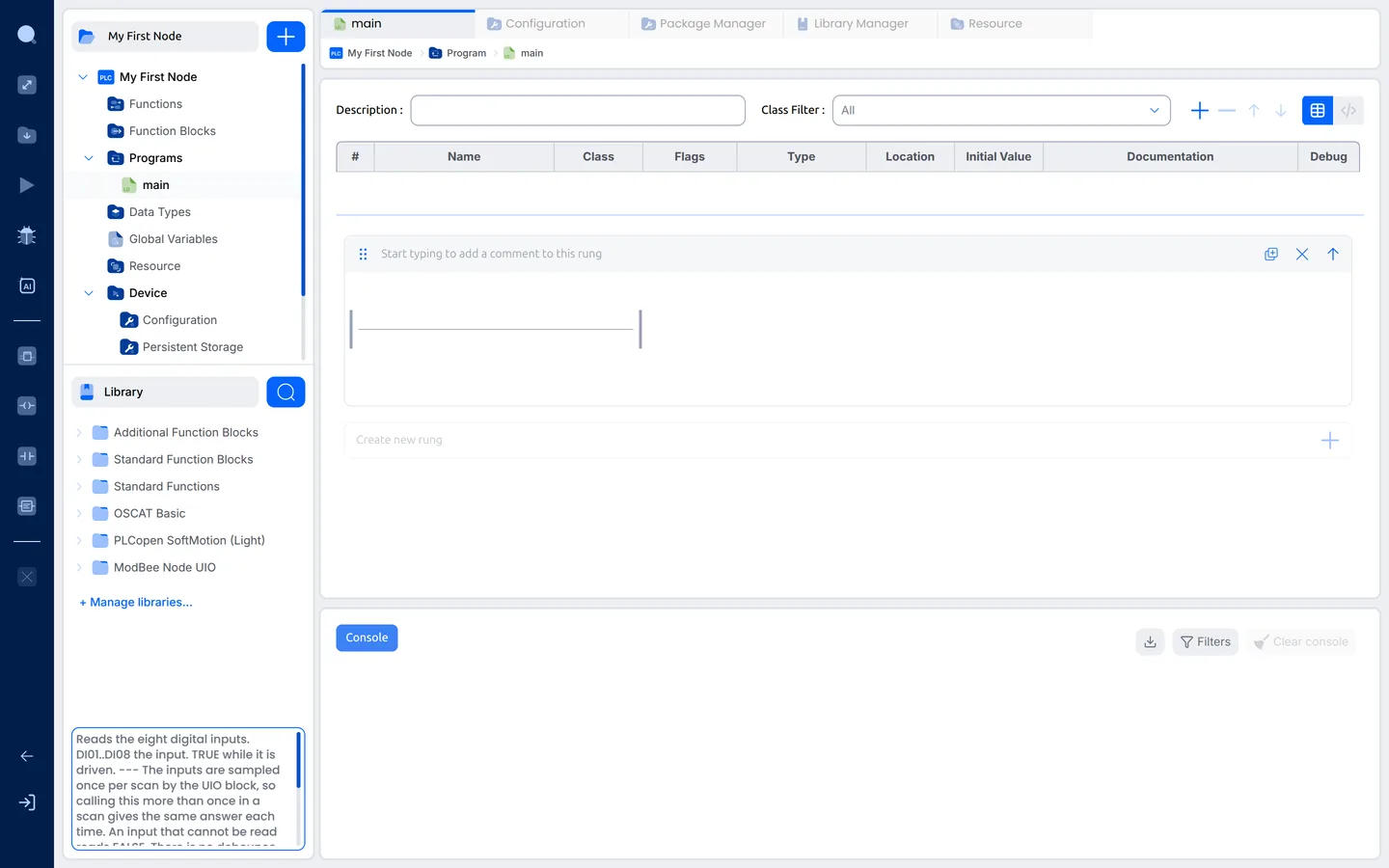
-
Right-click on the rung. A round menu opens with Contact, Coil and
Block.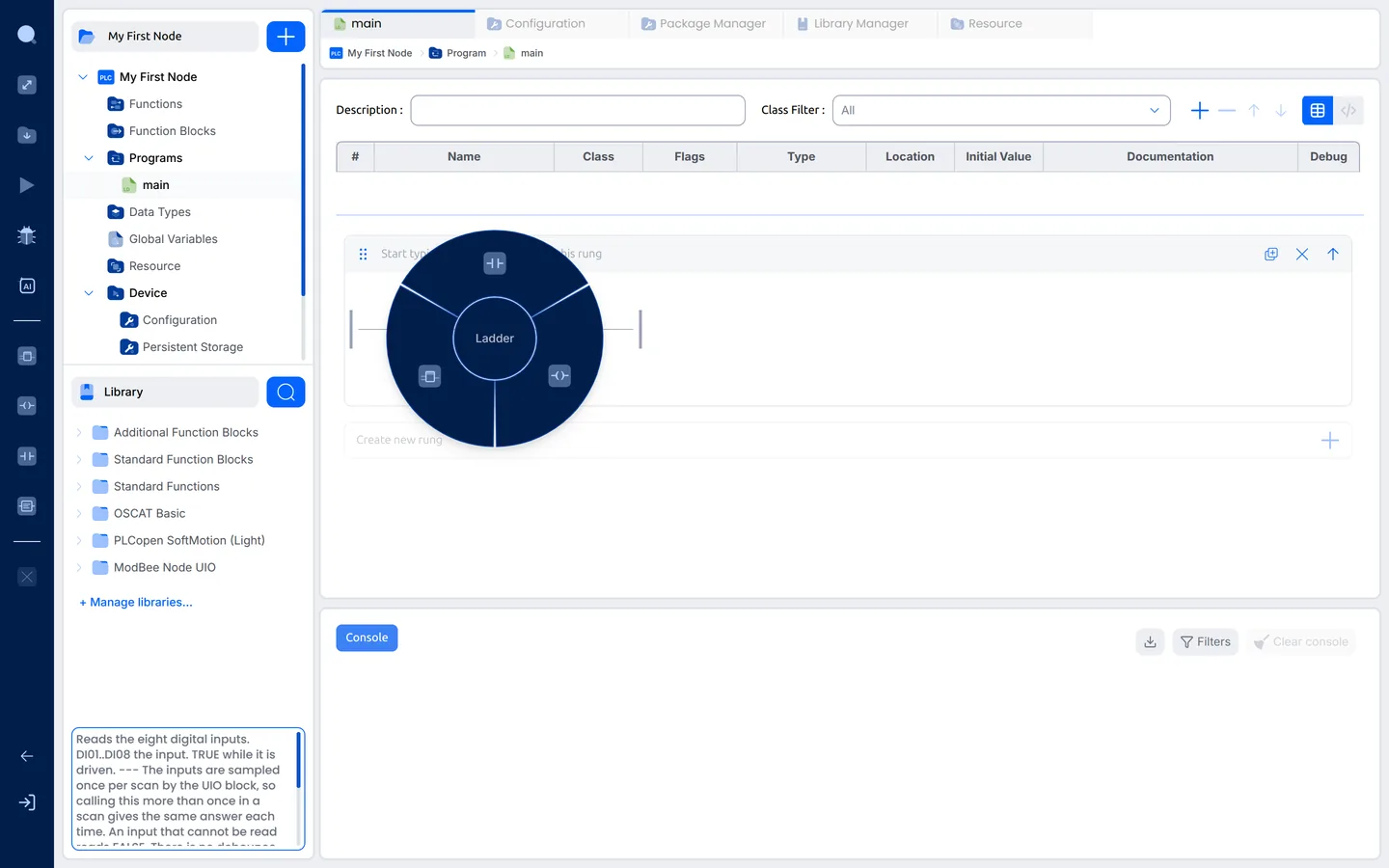
Shortcuts: Alt+1 contact, Alt+2 coil, Alt+3 block (⌘ instead of Alt on a
Mac). -
Click Block. The block follows the mouse, and small marks show where it
can go on the rung. Click on a mark.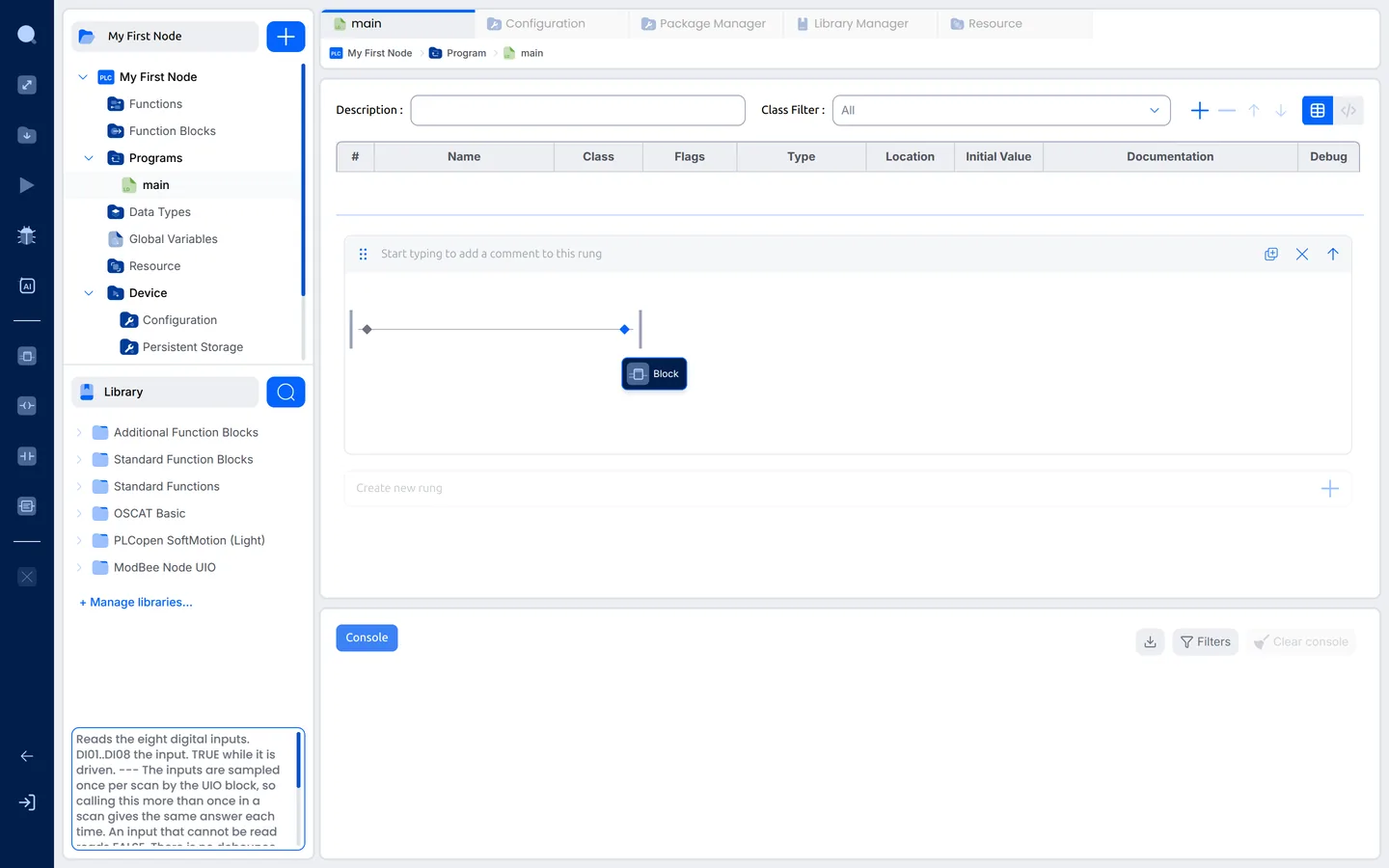
-
Type the block's type,
UIO, into the block, and press Enter.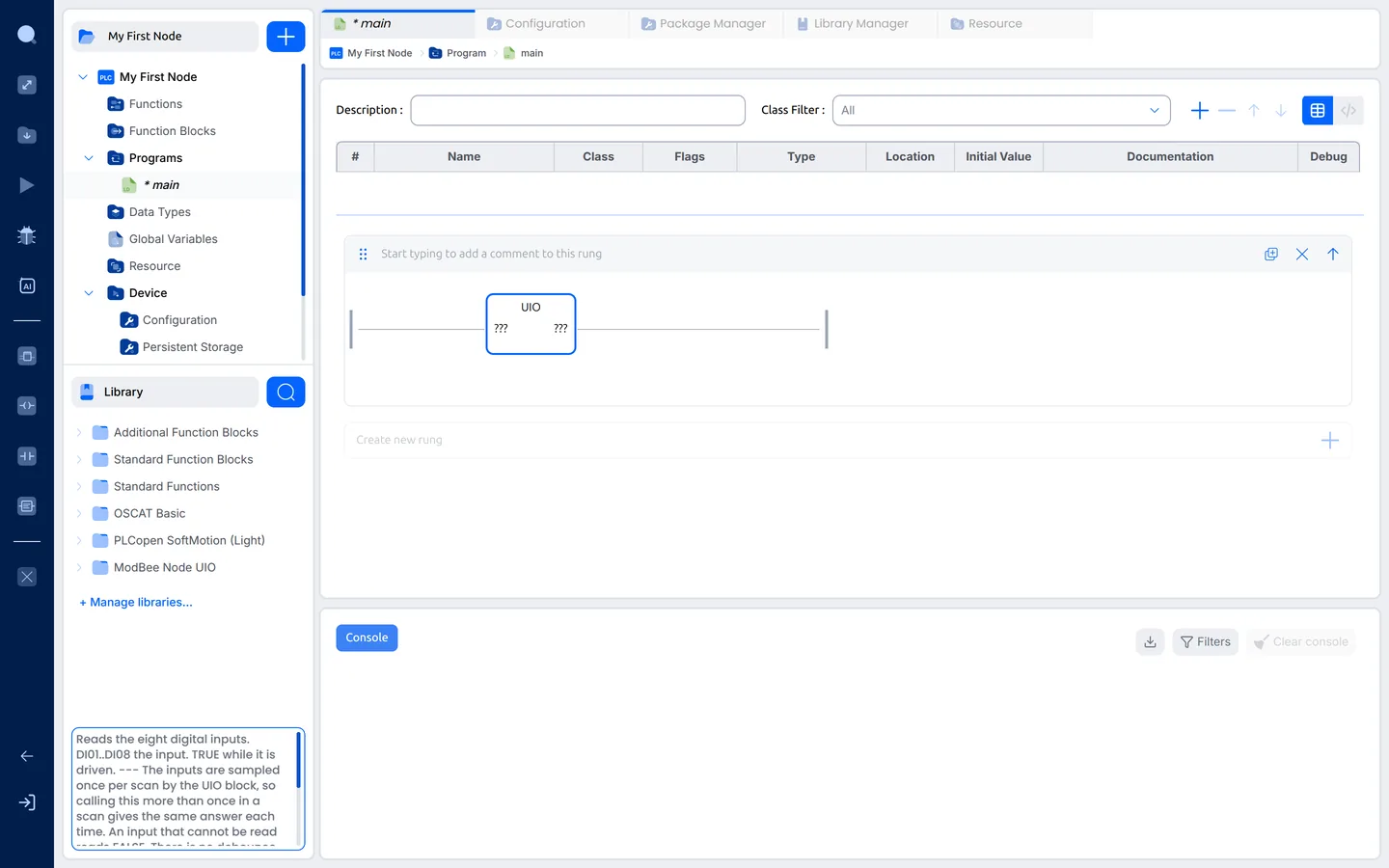
The block gets its pins, and the editor declares a variable for it in the
variables table,UIO0of typeUIO. That variable is the block's
instance: its own memory, kept from one scan to the next. -
Give the instance a meaningful name. In the variables table, click the
UIO0row, then click its name, typeBoardand click outside the table.
The editor asks whether to update the diagram as well. Click
Yes, rename references.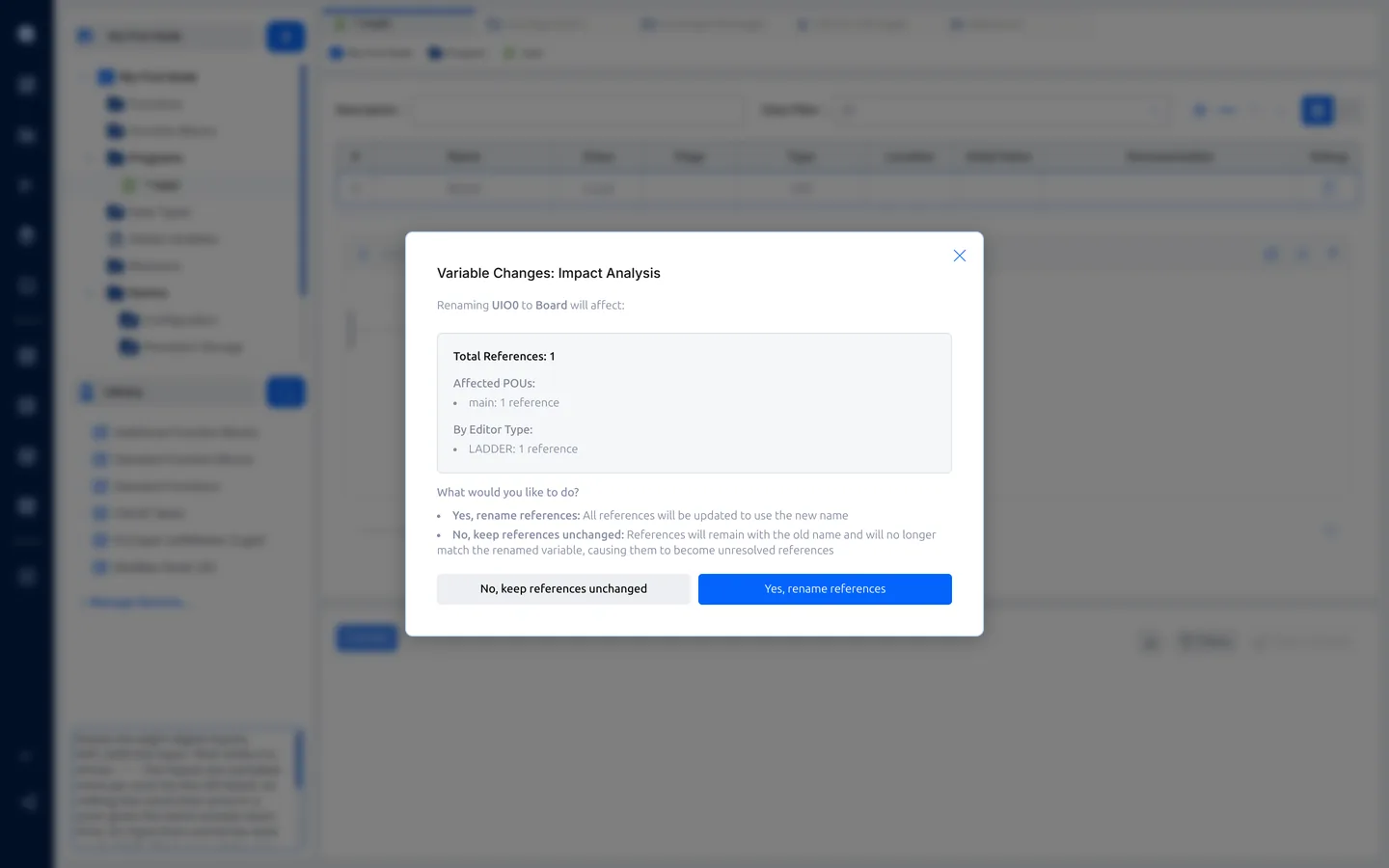
-
Click Start typing to add a comment to this rung and describe the rung.
Comments make the program readable for the next person.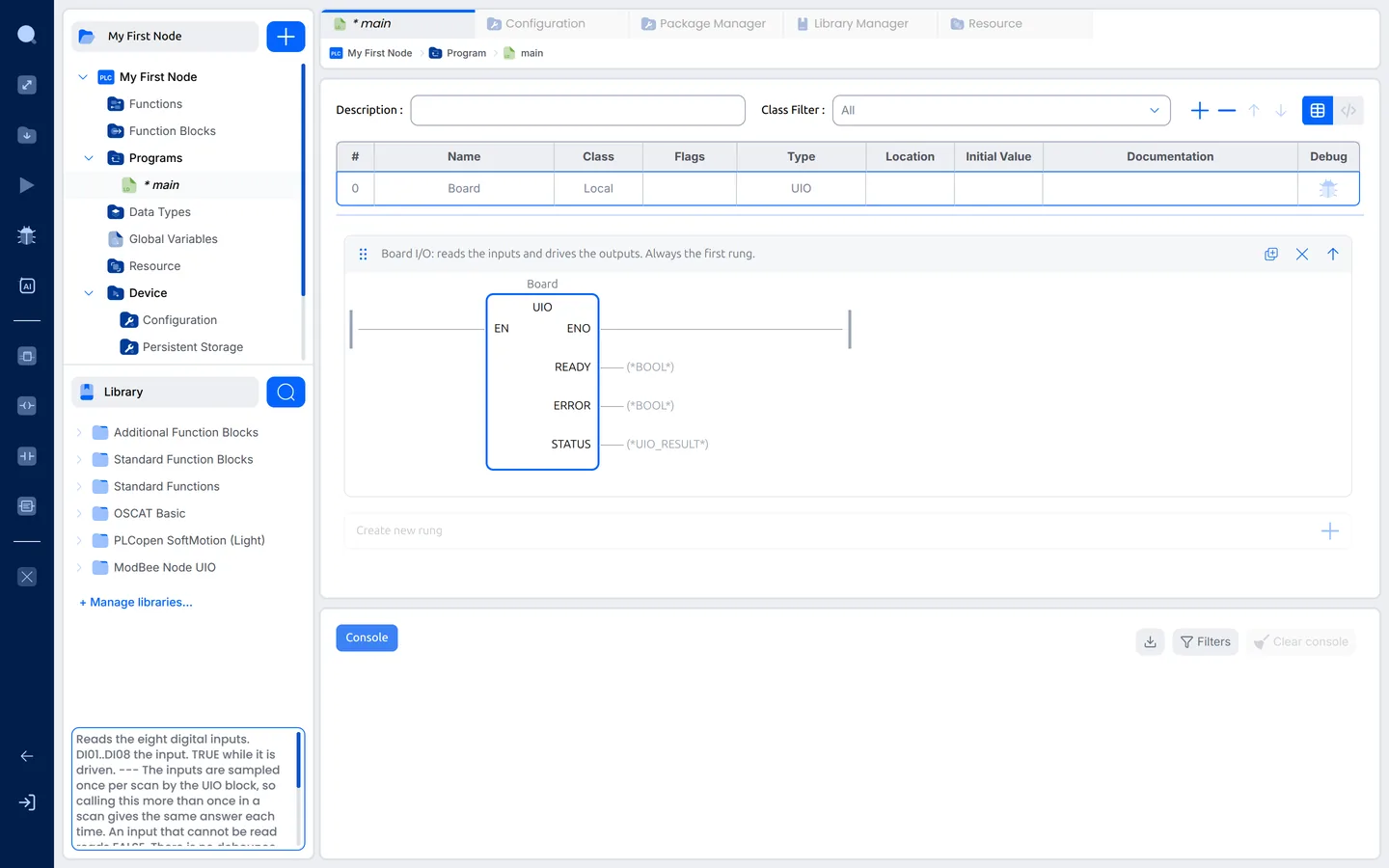
READY turns on once the board's I/O chips have answered. ERROR and
STATUS say why if they don't. Leave them empty for now.
Rung 2: the inputs
Add a rung the same way. Place a block, type DIGITAL_IN and rename its
instance to Inputs.
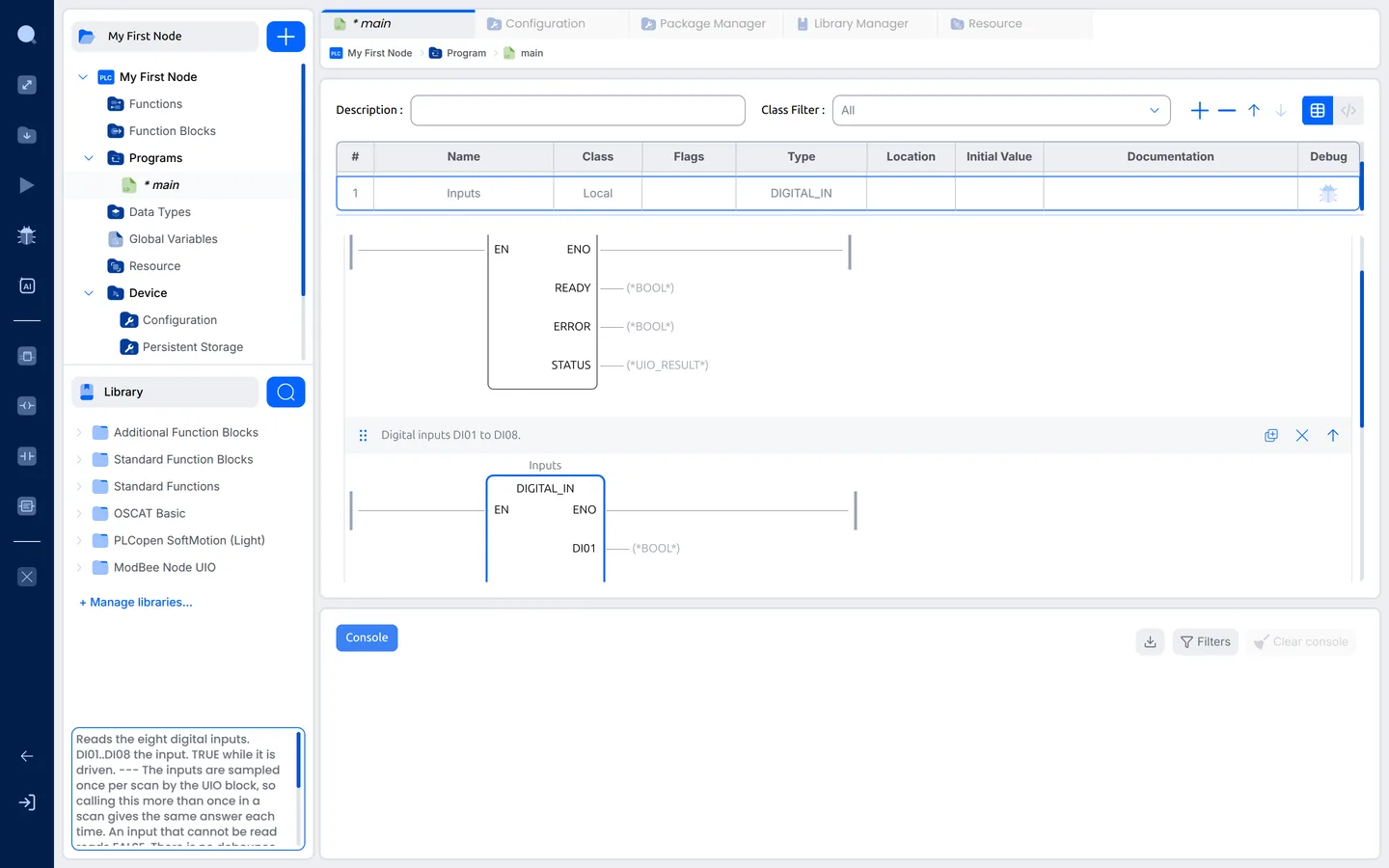
Its outputs DI01 to DI08 are the eight inputs. You use them as
Inputs.DI01, Inputs.DI02 and so on.
Rung 3: the lamp
-
Add a rung. Right-click, choose Contact and place it. Type
Inputs.DI01and press Enter.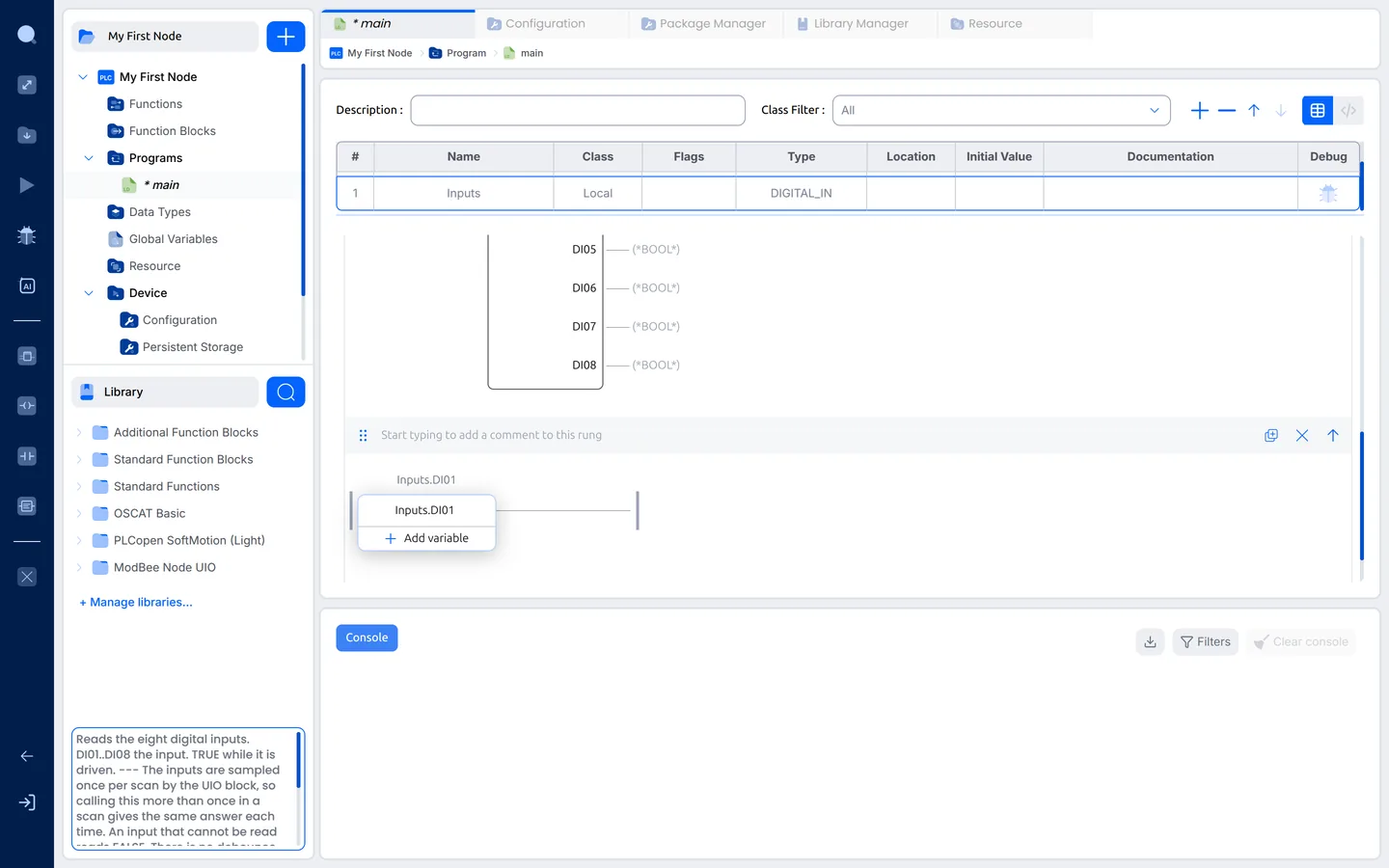
-
Right-click, choose Coil and place it on the mark to the right of the
contact. TypeLampand press Enter.Lampdoes not exist yet, so the
editor declares it for you, as aBOOL(on or off).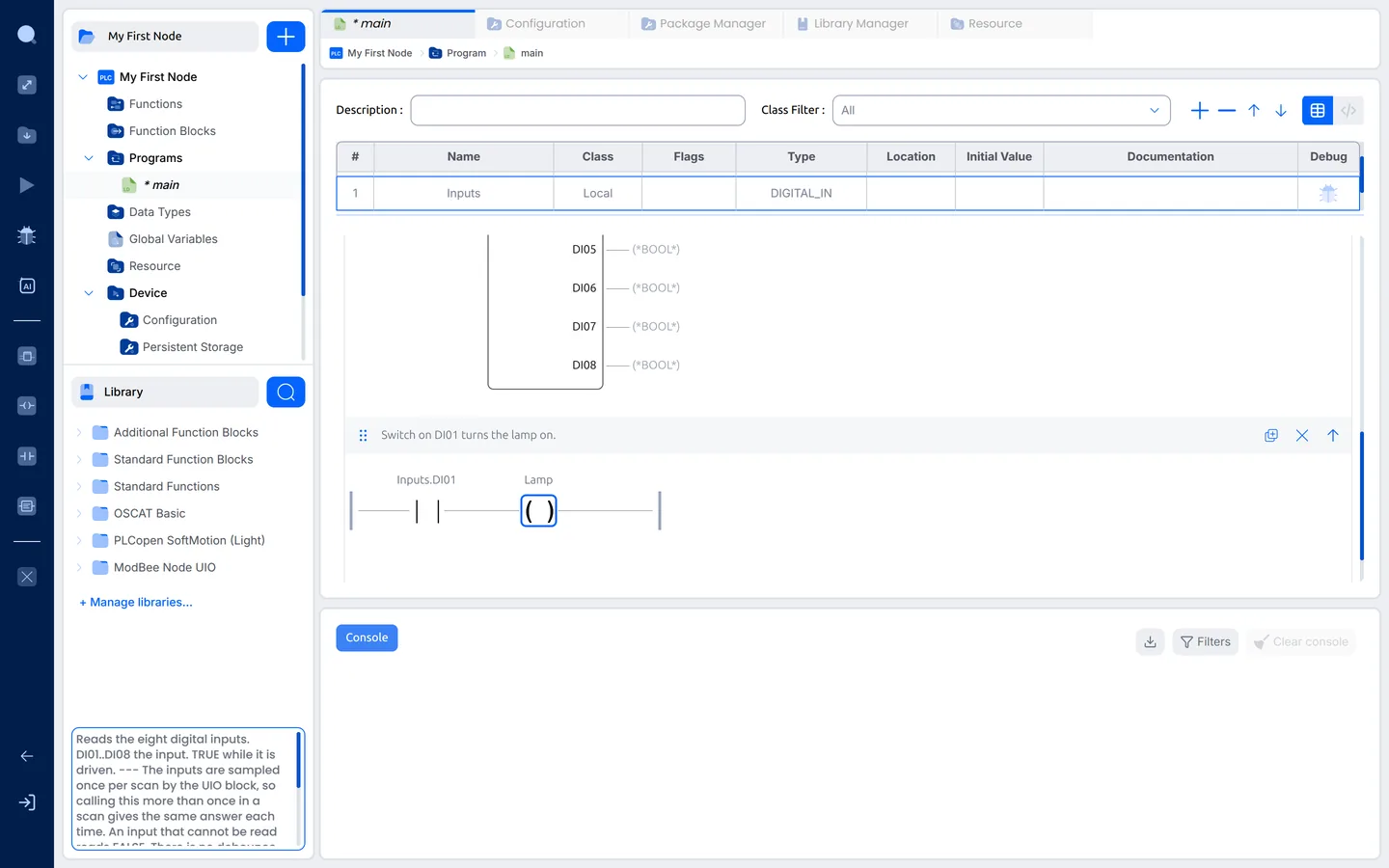
Rung 4: the pump, after 5 seconds
- Add a rung with a contact on
Inputs.DI02. - Place a block to the right of the contact and type
TON: the standard
on-delay timer. Rename its instance toPumpDelay. - Click the empty field on the timer's
PTpin, typeT#5s(5 seconds, in
IEC time notation) and press Enter. - Place a coil to the right of the timer and type
Pump.
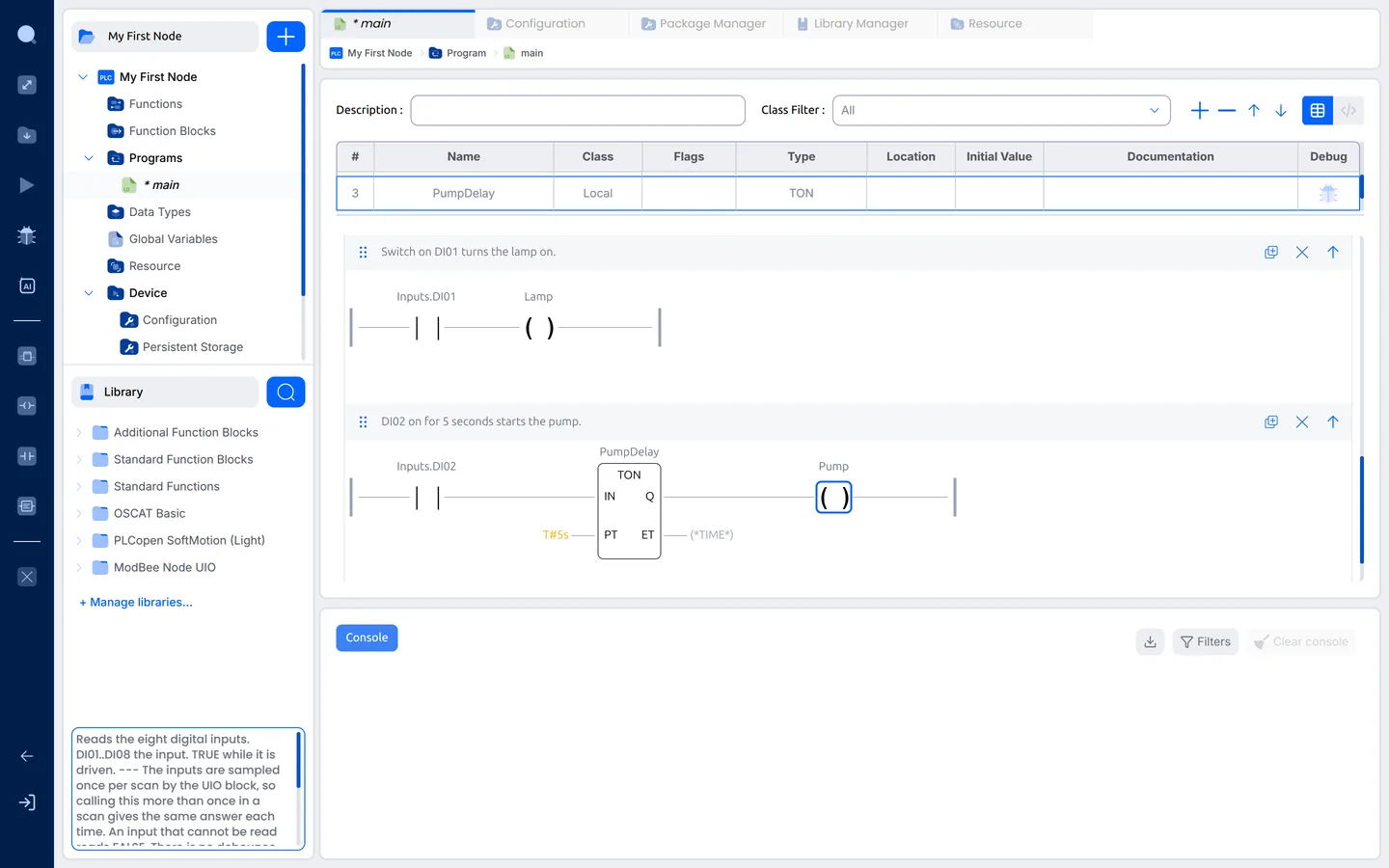
The timer's output Q turns on when its input IN has been on for the time
PT. If DI2 goes off sooner, the timer starts again from zero. ET shows the
time so far.
Rung 5: the outputs
-
Add a rung with a
DIGITAL_OUTblock and rename its instance toOutputs. -
Click the field on the
DO01pin and start typingLamp. The editor lists
the variables that fit. Click Lamp.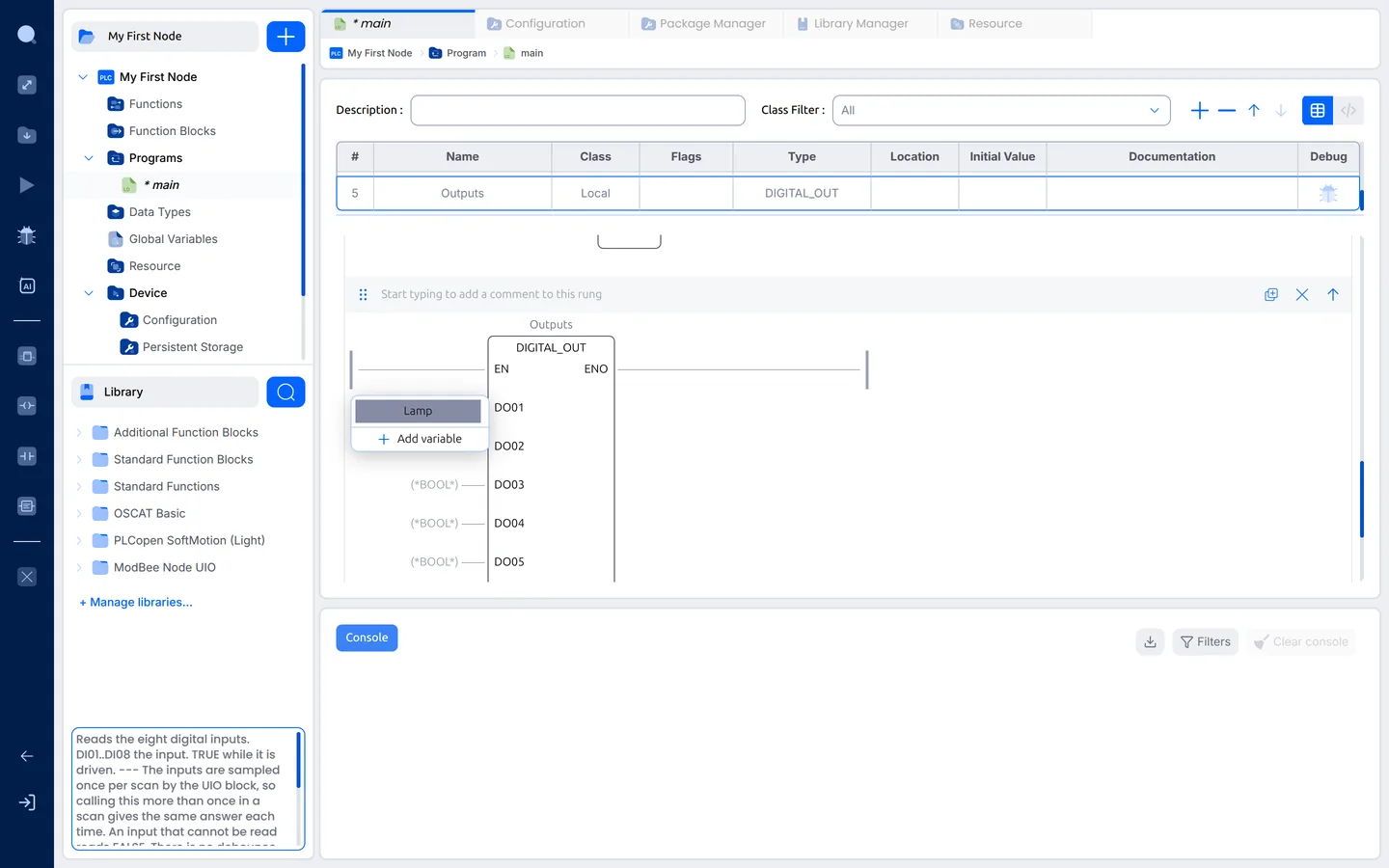
-
Click an empty part of the rung, then do the same on
DO02with Pump.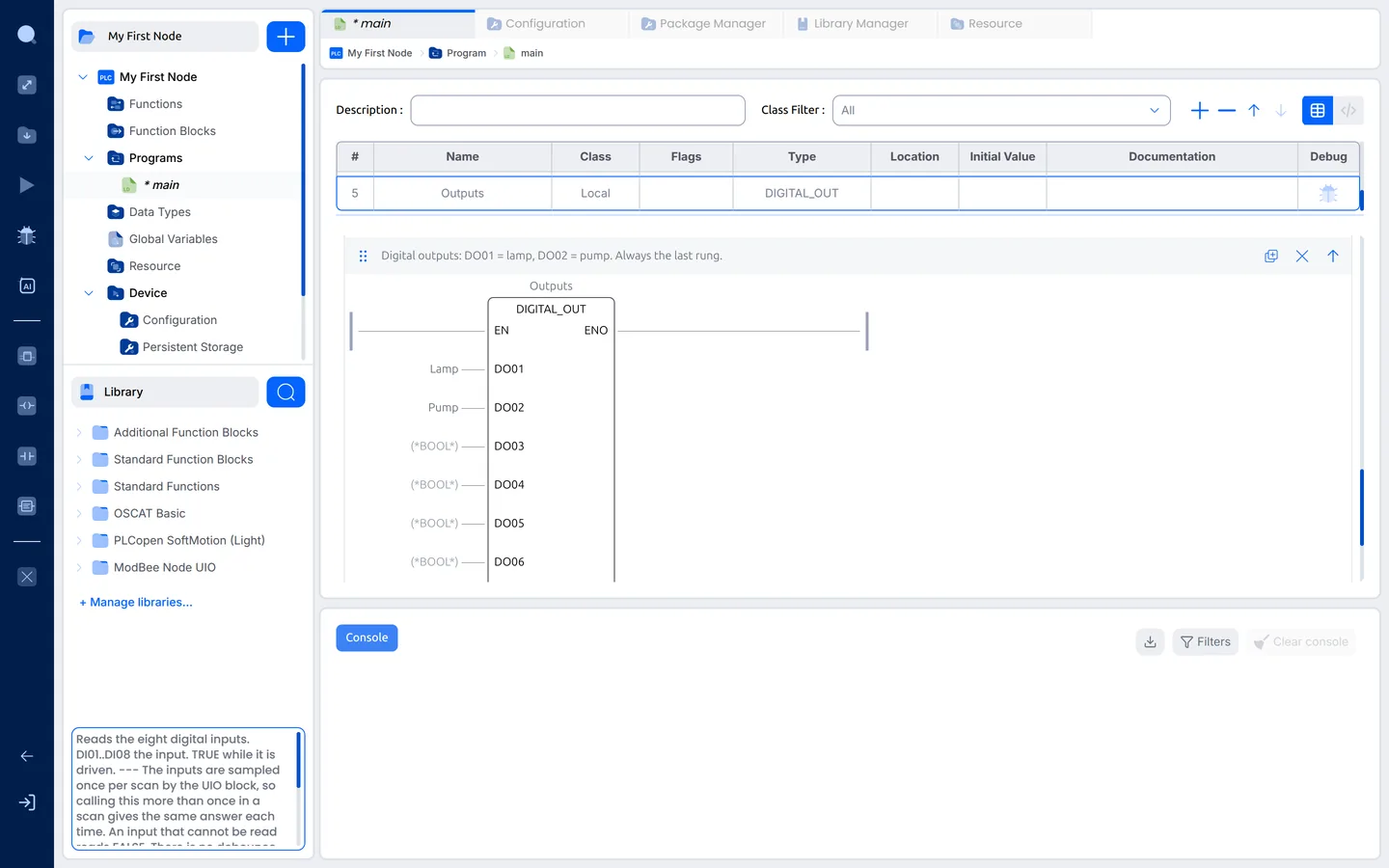
Save the project: File › Save Project (Ctrl+Shift+S).
Compile
Click the Build button in the tool bar on the left, the arrow pointing
down into a tray. It offers:
- Build only: compile without uploading. Use it to check the program
without a board. - Build and upload: compile and upload to the board.
- Clean build and upload: the same, starting from scratch.
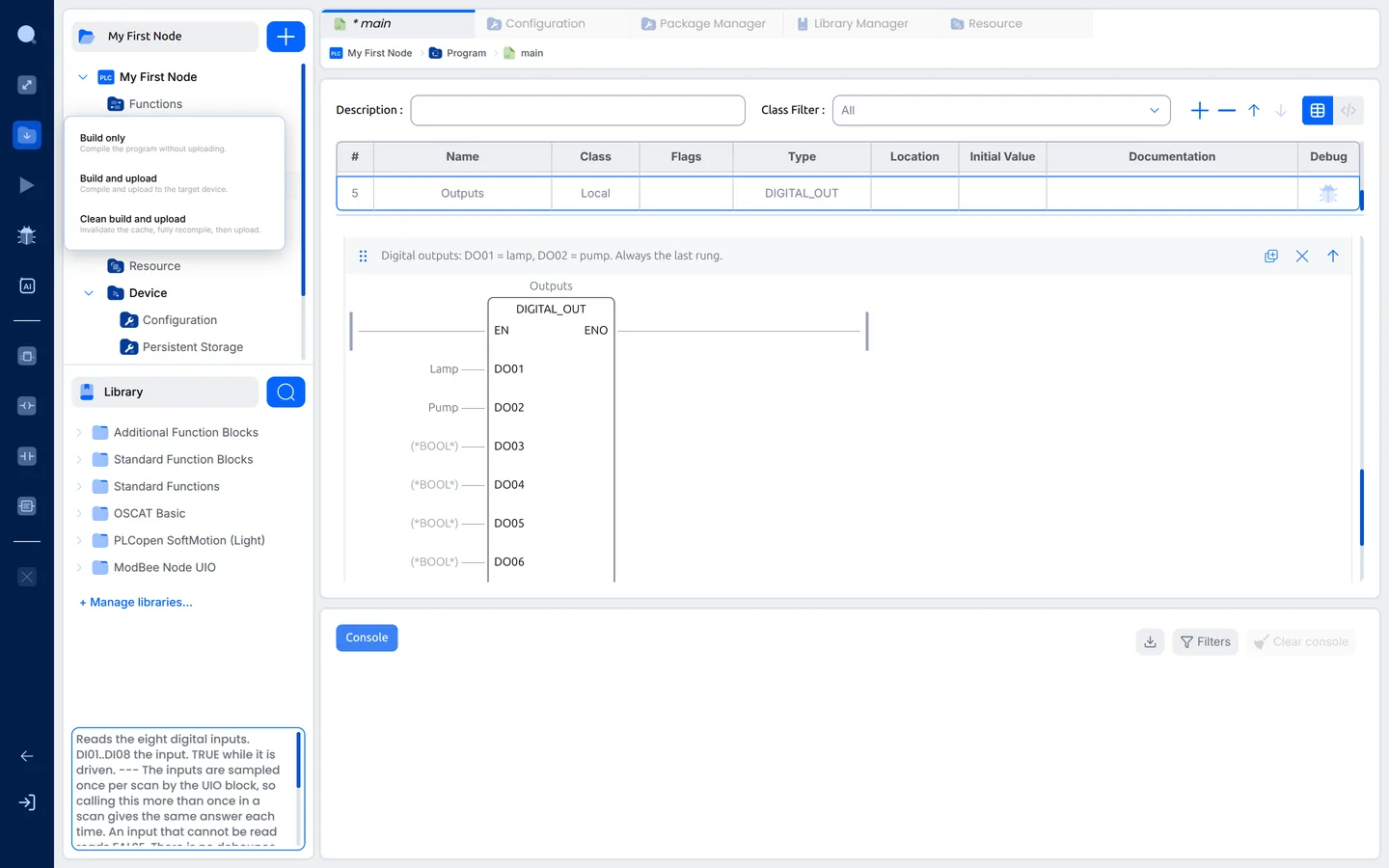
Click Build only. The console follows the build. The first build of a
Node UIO project takes several minutes while the ESP32 tools compile. Later
builds are much quicker.
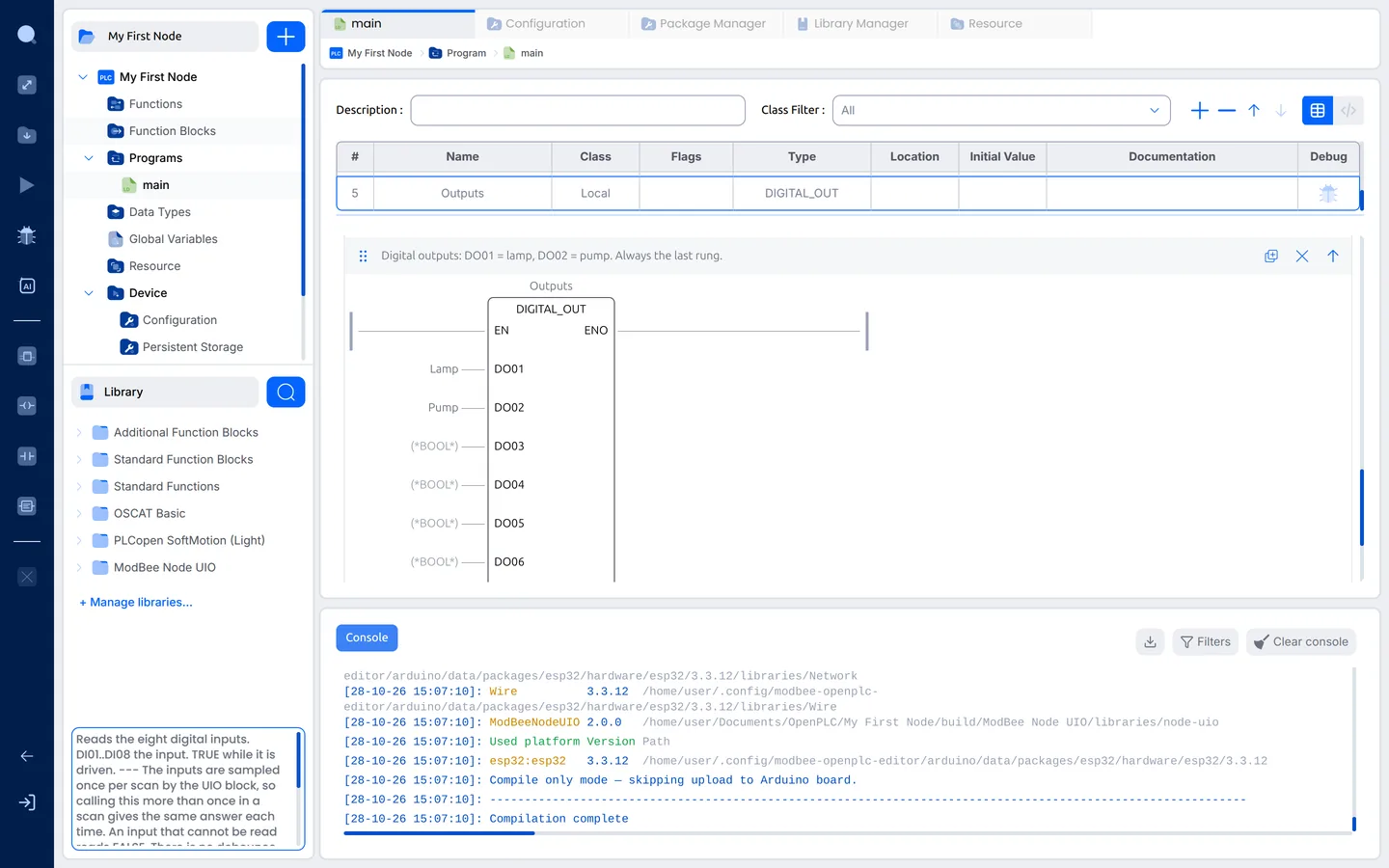
Compilation complete means the program is good. Scroll up a little to find
how much of the board's memory the program uses (Sketch uses … and
Global variables use …). If the build stops with an error, the console names
the program, the line and the problem, for example a variable that does not
exist.
Upload
-
Plug the Node UIO into your computer with a USB-C cable.
-
Open Device › Configuration. Click the refresh arrow next to
Communication Port, and pick the port the Node UIO appeared on. On
Linux it is/dev/ttyACM0(ESP32 Family Device), on Windows aCOMport.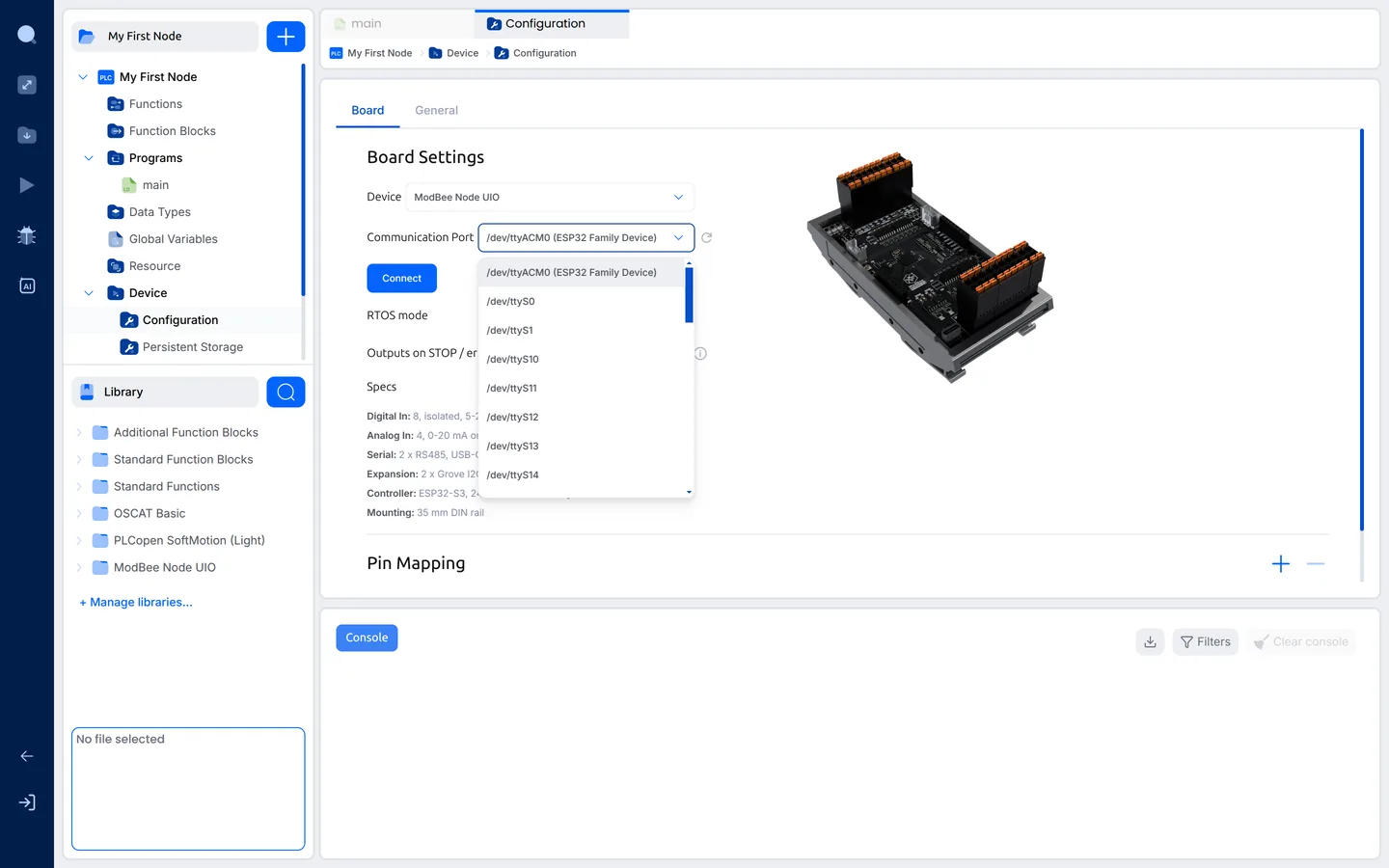
-
Save the project, then click Build › Build and upload. The
console shows the build, then the upload. It ends with
Arduino upload complete.and the board restarts with your program.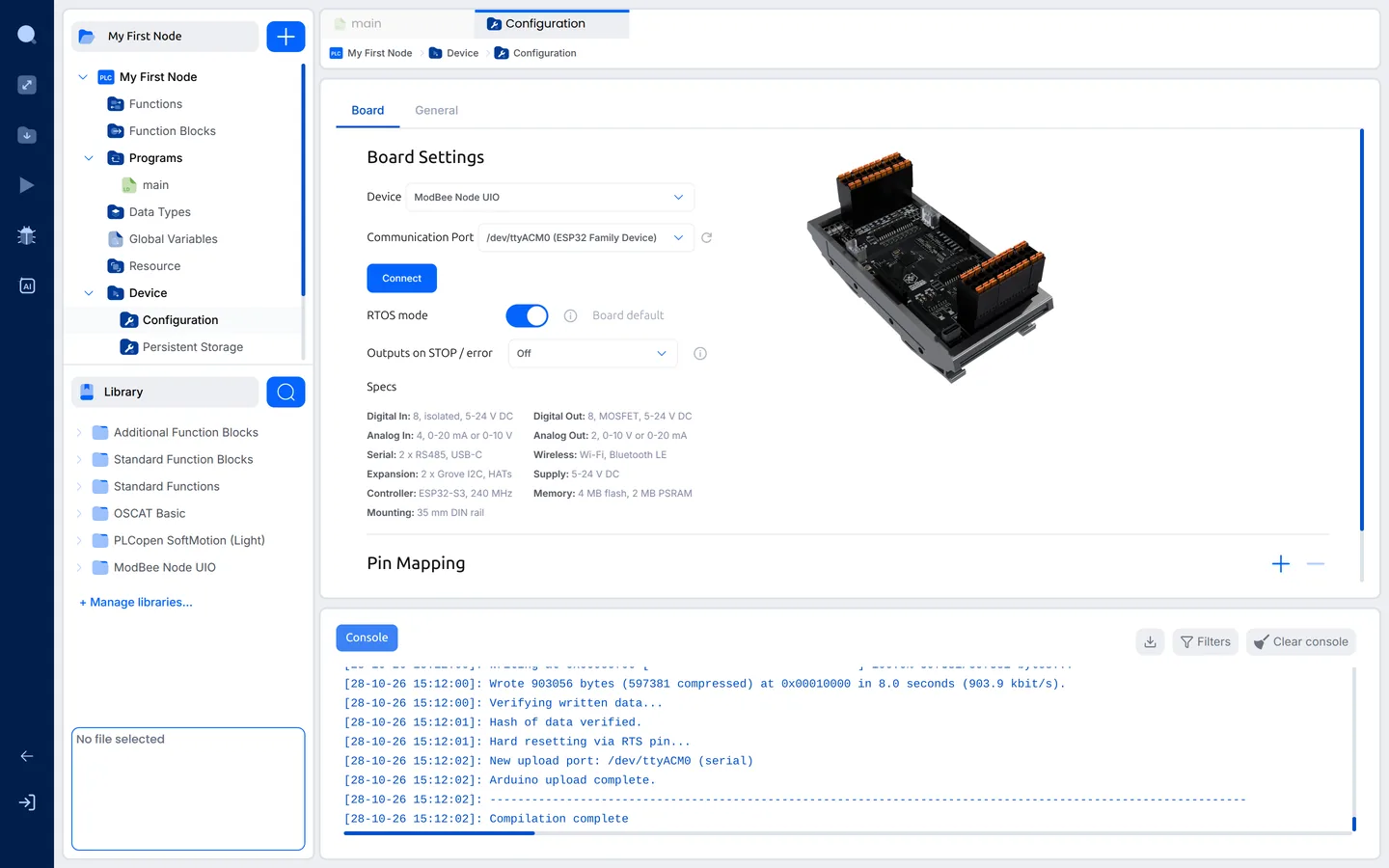
Your program now runs on the Node UIO by itself, and it starts again after a
power cut. Switch DI1 on and DO1 comes on. Hold DI2 on for 5 seconds and DO2
comes on.
Watch it run
The debugger shows the program running on the board, live, over the USB-C
cable.
- Click the Debugger (the bug) in the tool bar on the left. The editor
asks to connect to the board. Click Yes. The console shows
status -> connected. - Click the Debugger again to start the live view, and open the program
main.
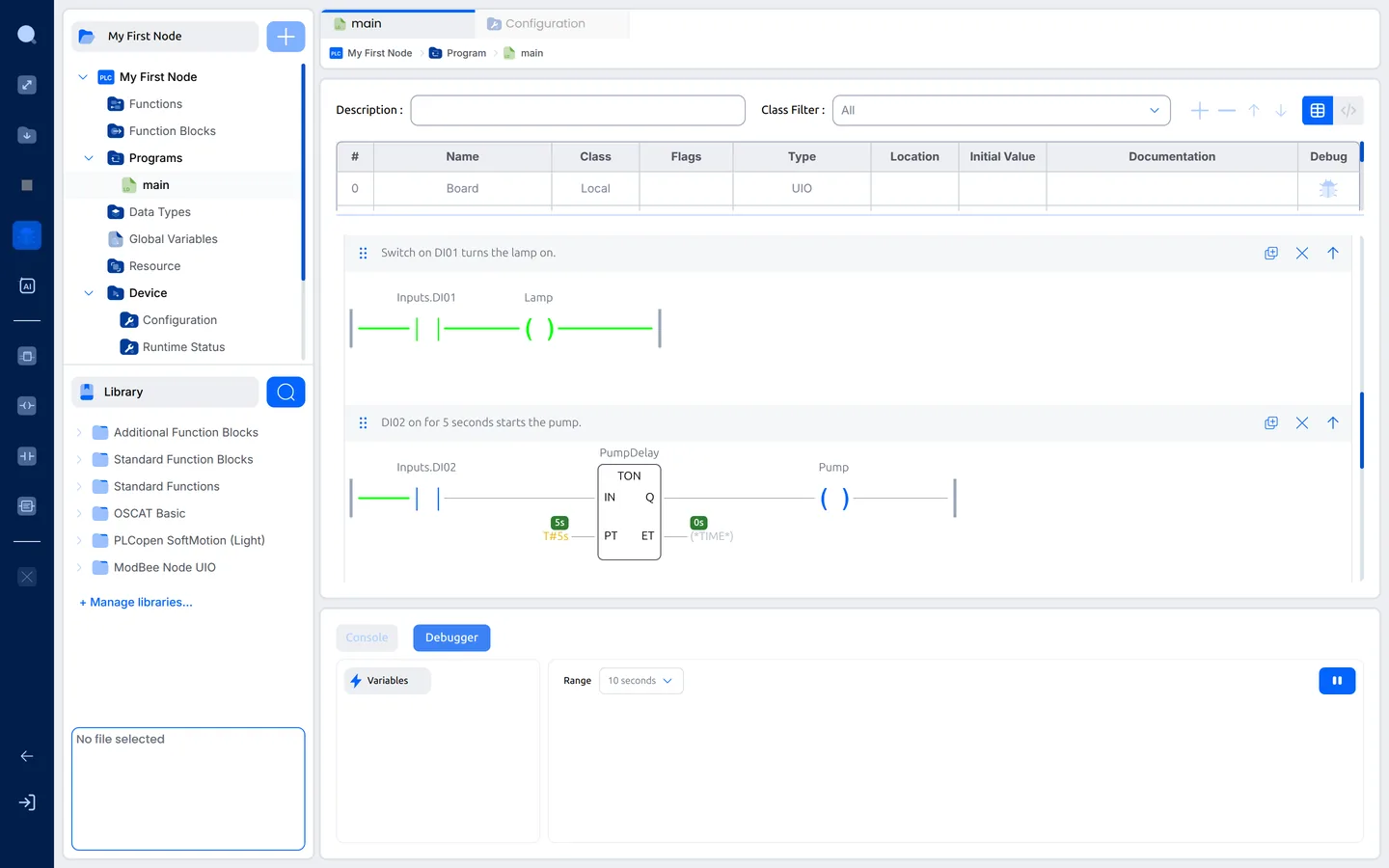
The rungs now show the values in the board. A wire that carries power turns
green, so you can follow it through each contact and coil. Blocks show their
values beside the pins, such as PT and ET on the timer. The picture below
has DI1 switched on: the contact Inputs.DI01 is closed and the Lamp coil
is on.
- Switch DI1 on:
Inputs.DI01andLampturn on, and the lamp on DO1
lights. - Switch DI2 on:
PumpDelay.ETcounts up, and after 5 secondsPumpand DO2
come on.
Next: 5. Next steps