
2. Install
You install three things: the editor, the Node UIO board package and the
ModBee libraries. The board package and the libraries are installed from
inside a project, so this page also creates your first project.
Download
| What | Where |
|---|---|
| ModBee OpenPLC Editor | mod-bee/openplc-editor releases |
Board package com.modbee.node-<version>.vpp |
this repository's releases |
All libraries modbee-openplc-libraries.zip |
this repository's releases |
Pick the editor file for your computer:
| Computer | File |
|---|---|
| Windows (most PCs) | ModBee.OpenPLC.Editor_<version>.exe |
| Windows on ARM | ModBee.OpenPLC.Editor_<version>-ARM64.exe |
| Mac with Apple silicon (M1 and later) | ModBee_OpenPLC_Editor_<version>-ARM.dmg |
| Mac with an Intel processor | ModBee_OpenPLC_Editor_<version>.dmg |
| Linux (most PCs) | ModBee.OpenPLC.Editor-<version>.AppImage |
| Linux on ARM (for example, a Raspberry Pi) | ModBee.OpenPLC.Editor-<version>-ARM64.AppImage |
Install the editor
- Windows: run the
.exeand follow the installer. - Mac: open the
.dmgand drag the editor into Applications. - Linux: make the AppImage executable (right-click › Properties ›
Permissions › Allow executing file as program, or
chmod +x ModBee.OpenPLC.Editor-*.AppImage), then double-click it.
Start the editor. You see the start screen:
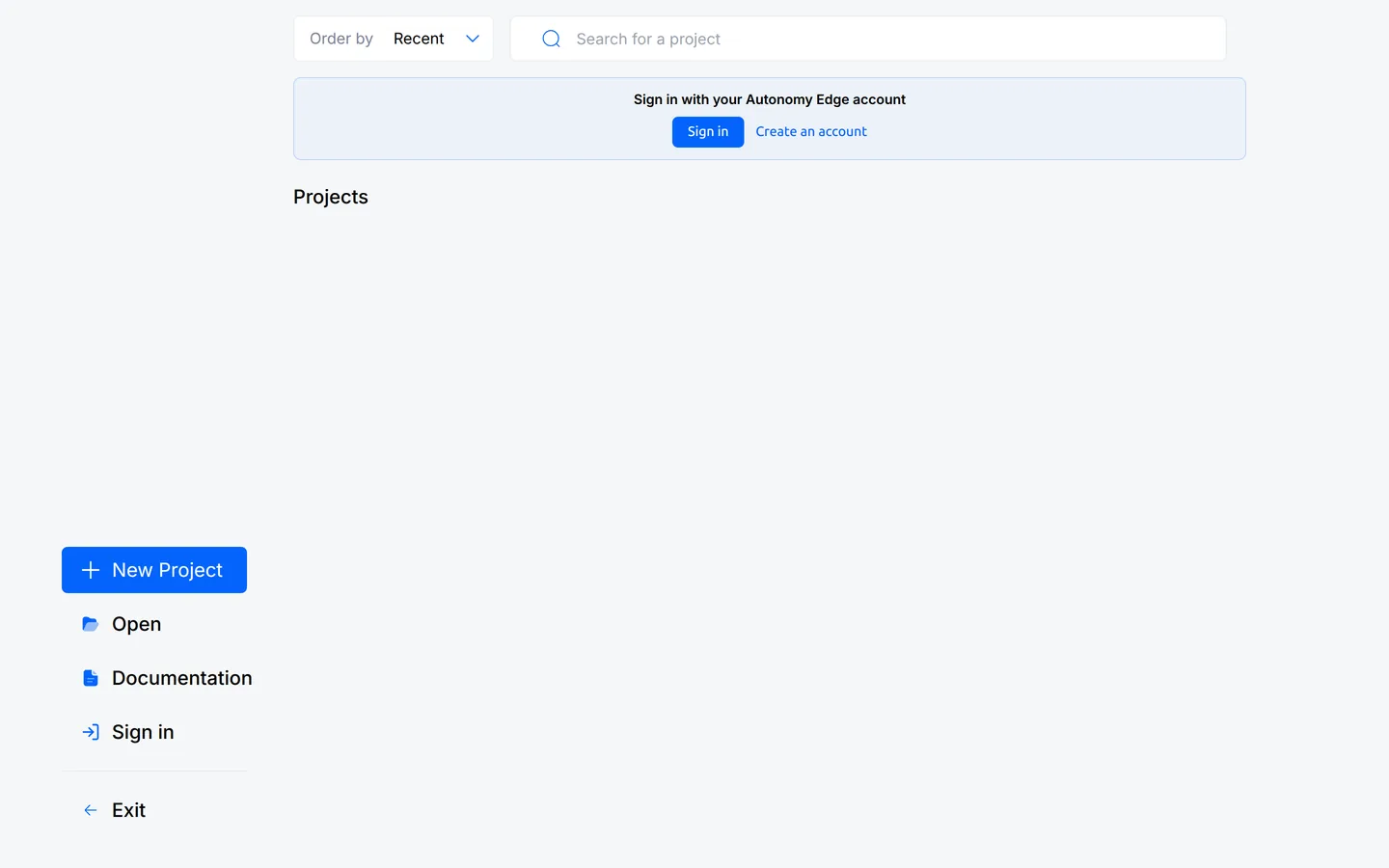
New Project creates a project. Open opens one from disk, and your
recent projects are listed on the right. You can ignore the Sign in box: an
Autonomy Edge account is optional and not needed for anything in this guide.
Create a project
A project is a folder holding your program, its settings and the board it
runs on. Make an empty folder for it first, for example
Documents/OpenPLC/My First Node.
-
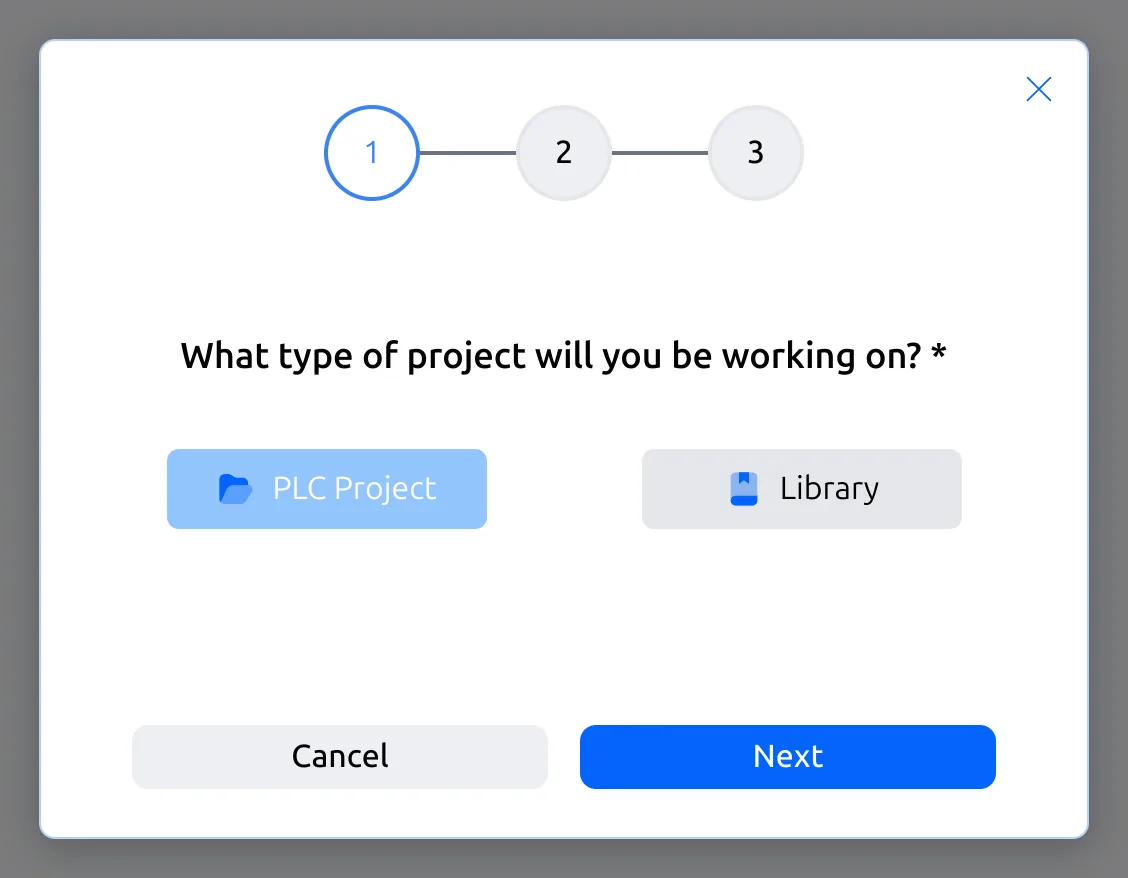
Click New Project, choose PLC Project and click Next.
-
Type a name, click the folder box, pick your empty folder and click
Next.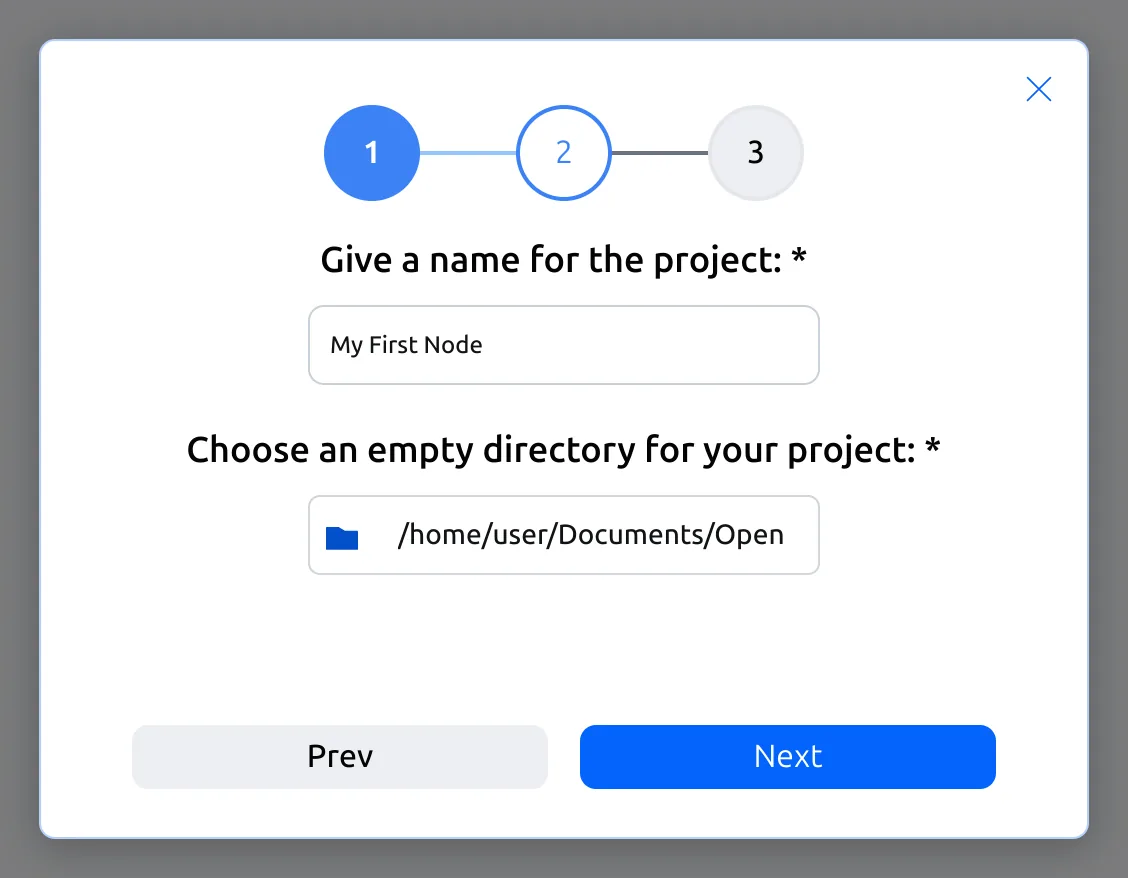
-
Choose Ladder Diagram as the language for the main program. Leave the
cyclic task time atT#20ms(page 3 explains it). Click Create Project.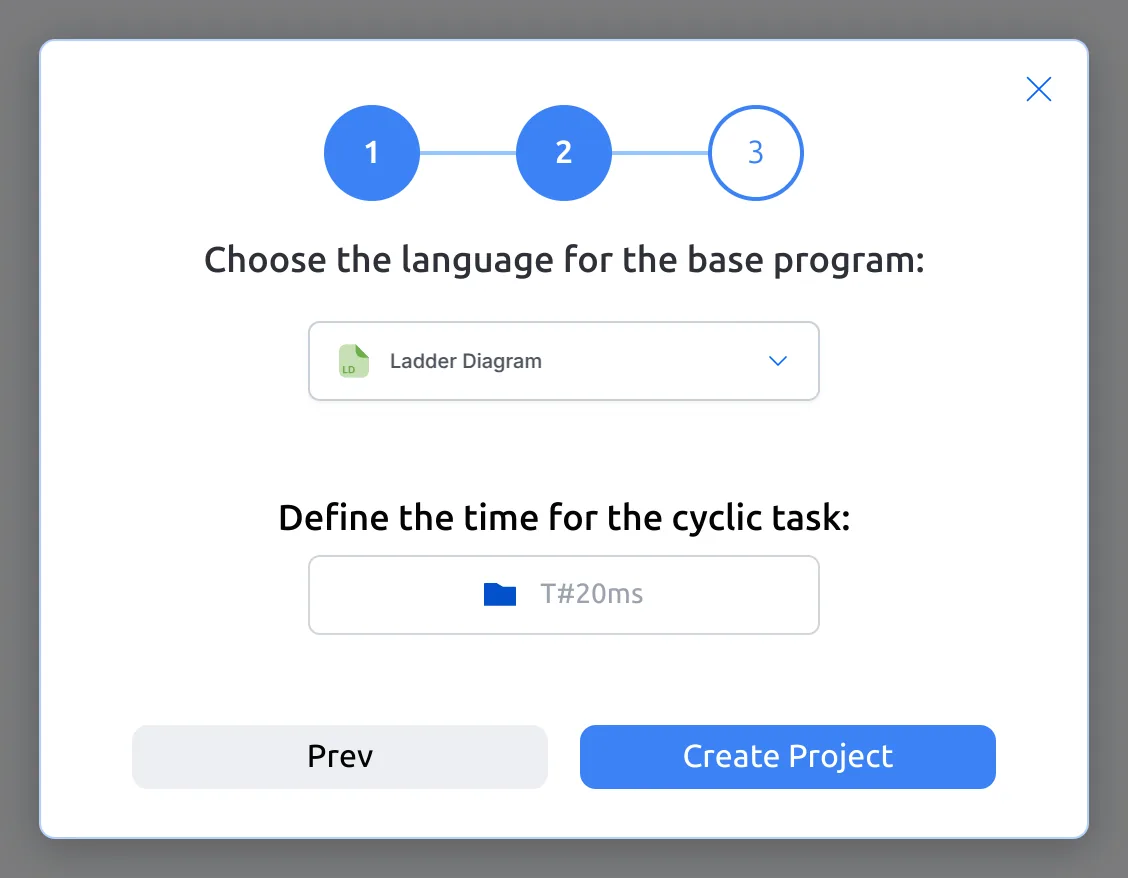
The project opens in the workspace:
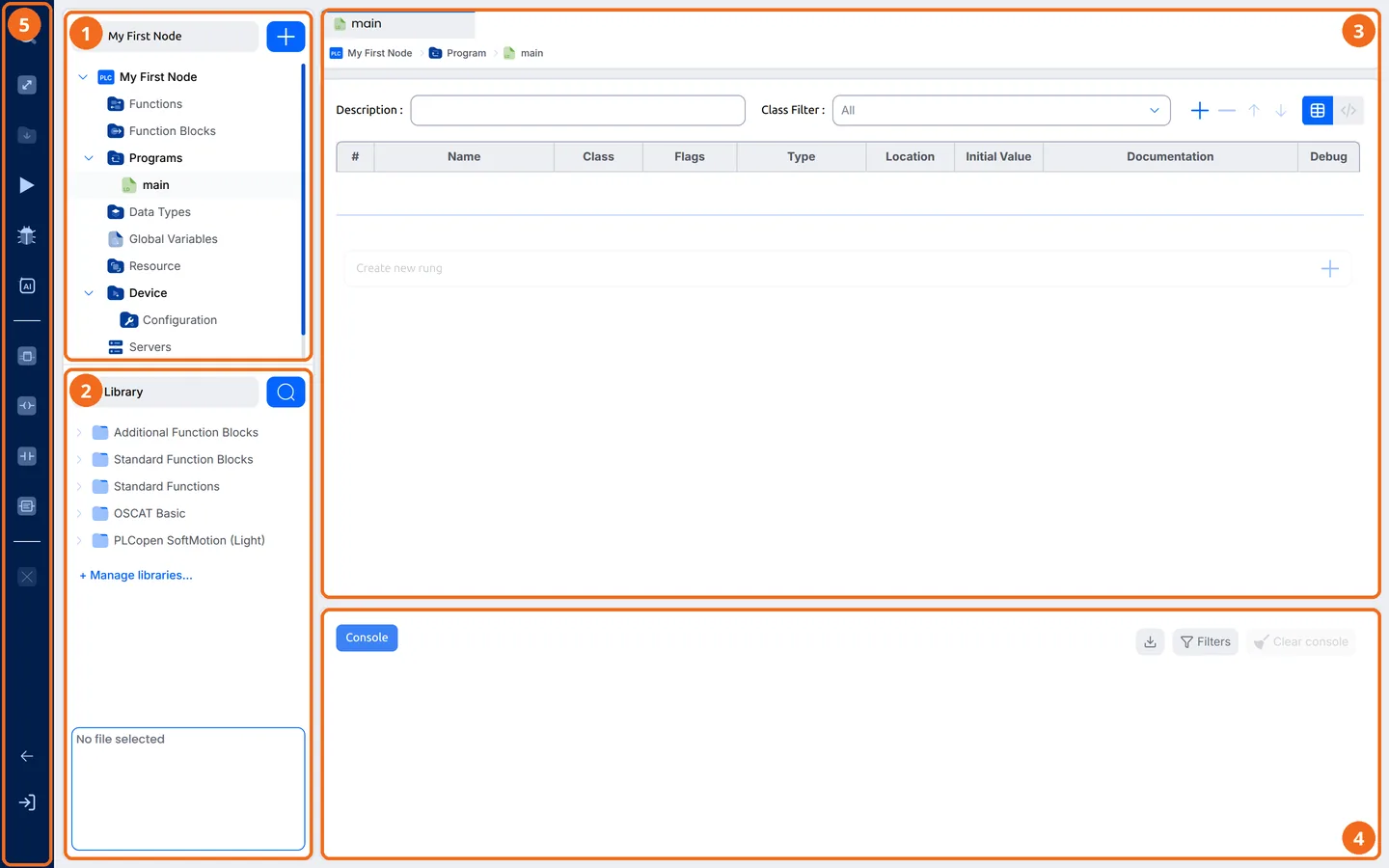
- Project tree: your programs, data types, global variables, the
Resource (tasks) and the Device (board settings). - Library: the blocks you can use. + Manage libraries… opens the
Library Manager. - Editor: the open item. Here it is the program
main, with its
variables table at the top and its Ladder rungs below. - Console: messages from the editor, builds and uploads.
- Tool bar: build and upload, run, and the live debugger.
Install the board package
The board package adds the ModBee Node UIO to the list of boards.
-
In the project tree, open Device › Configuration. Click the Device
box. It lists only the OpenPLC targets the editor comes with. Click
+ Install additional boards… at the bottom of the list.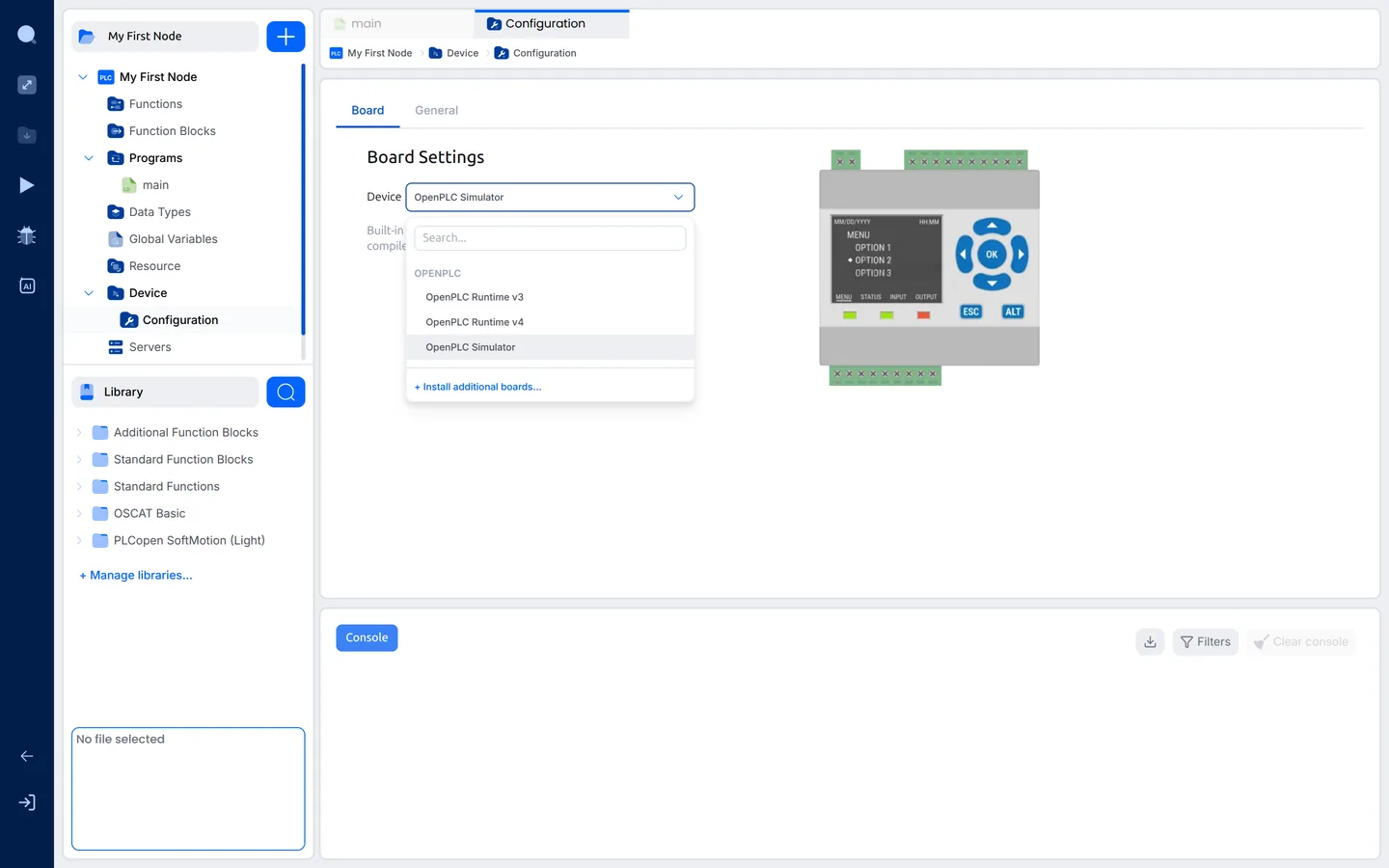
(The Package Manager is also under File › Board Package Manager….)
-
The Package Manager opens. Click + and then Add from file….
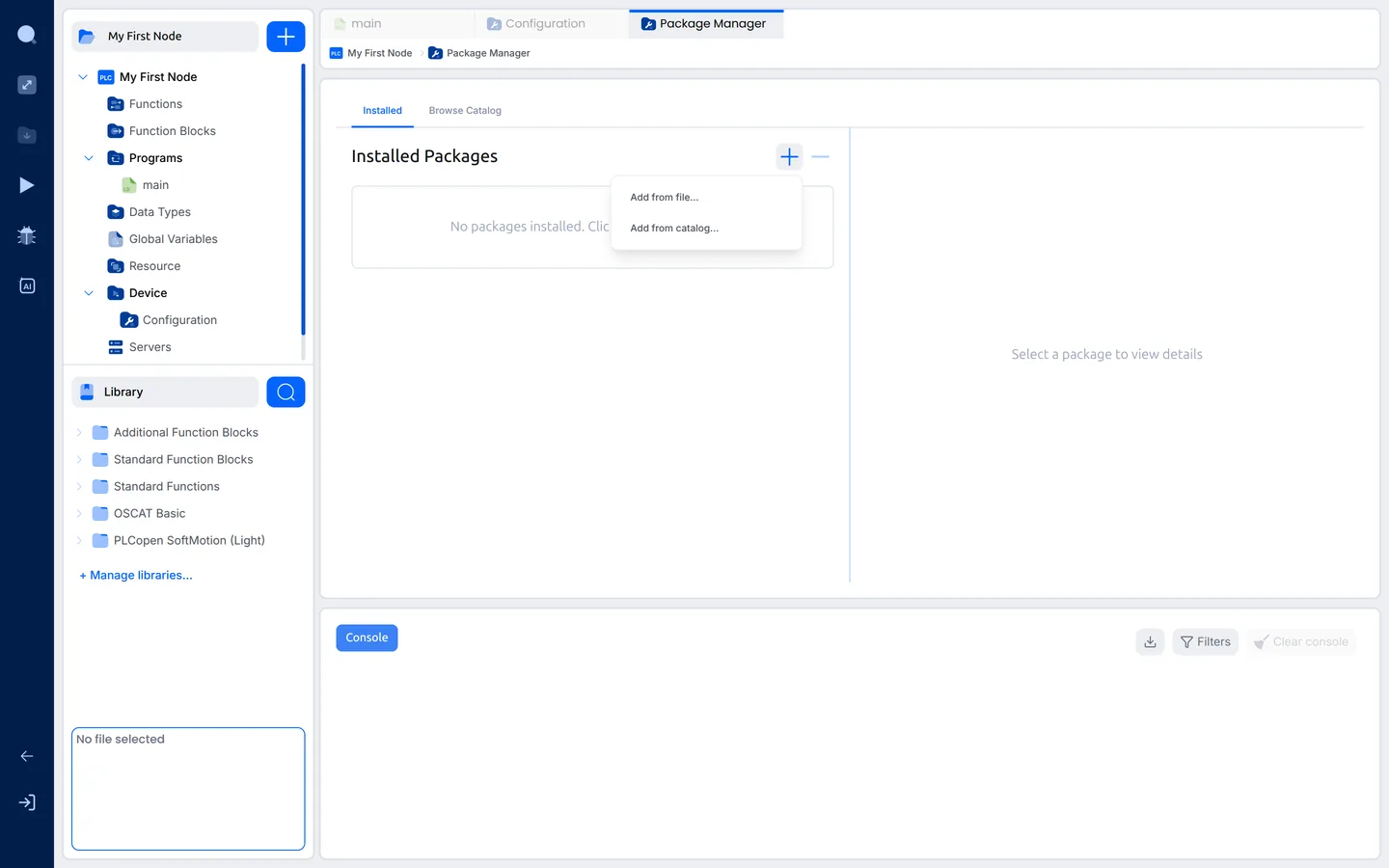
-
Pick the
com.modbee.node-<version>.vppyou downloaded. The package
appears under Installed Packages, and clicking it shows its details: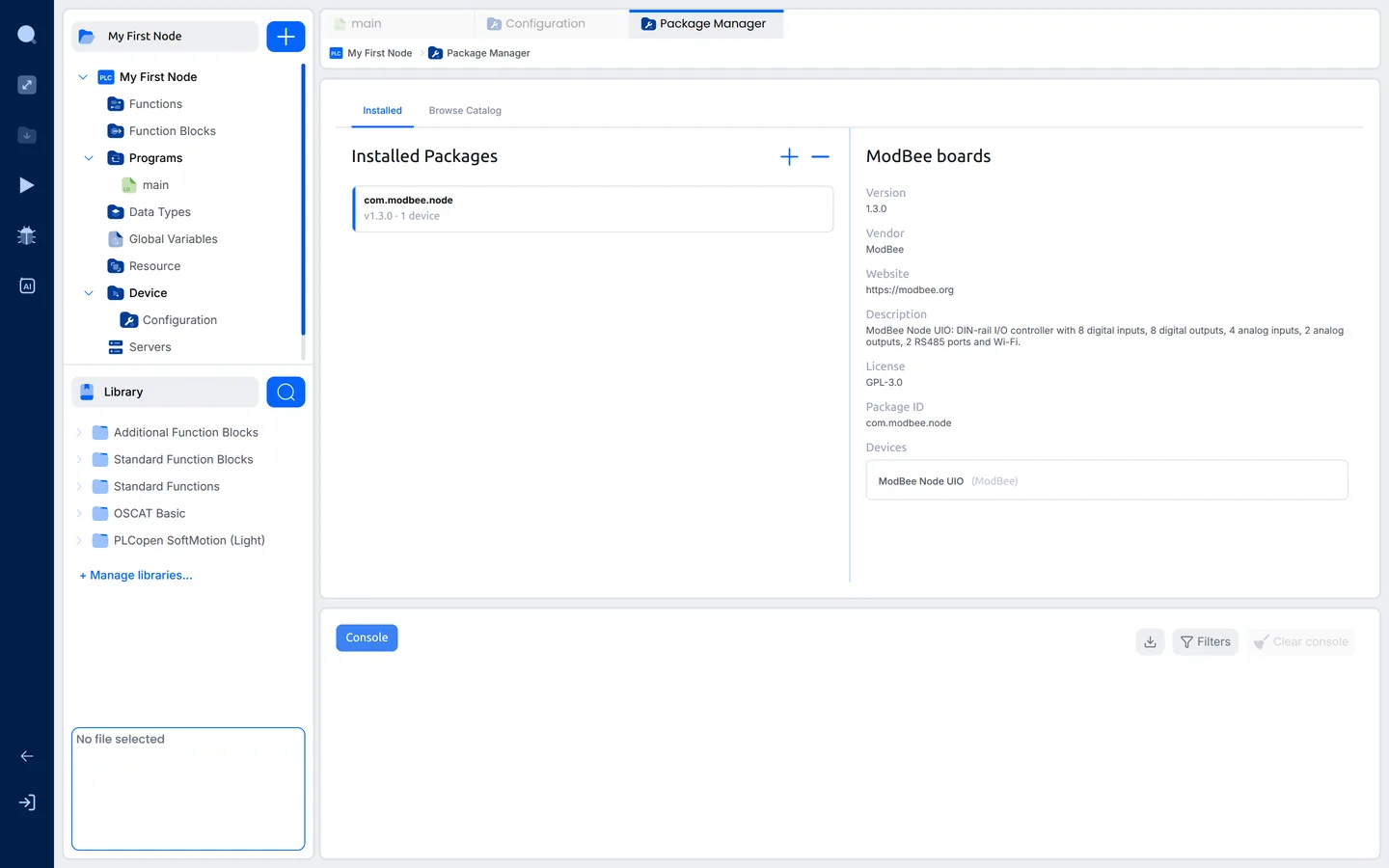
You do this once per computer. To update the package later, add the newer
.vpp the same way.
Install the libraries
Libraries are installed once per computer, and then switched on for each
project that uses them (page 3).
-
In the Library panel, click + Manage libraries…. The Library
Manager opens on System Libraries: the libraries on this computer.
The ones marked bundled come with the editor.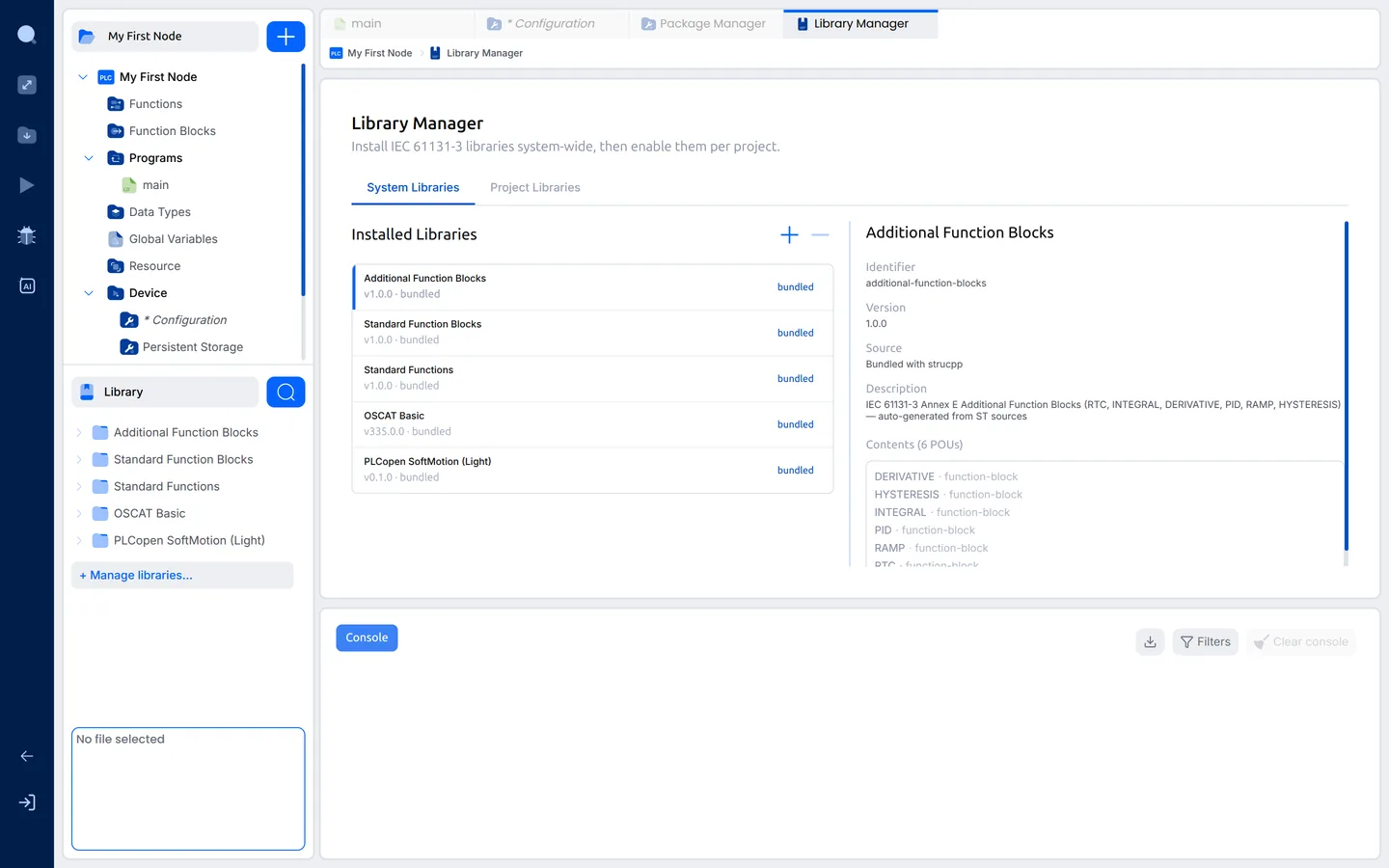
-
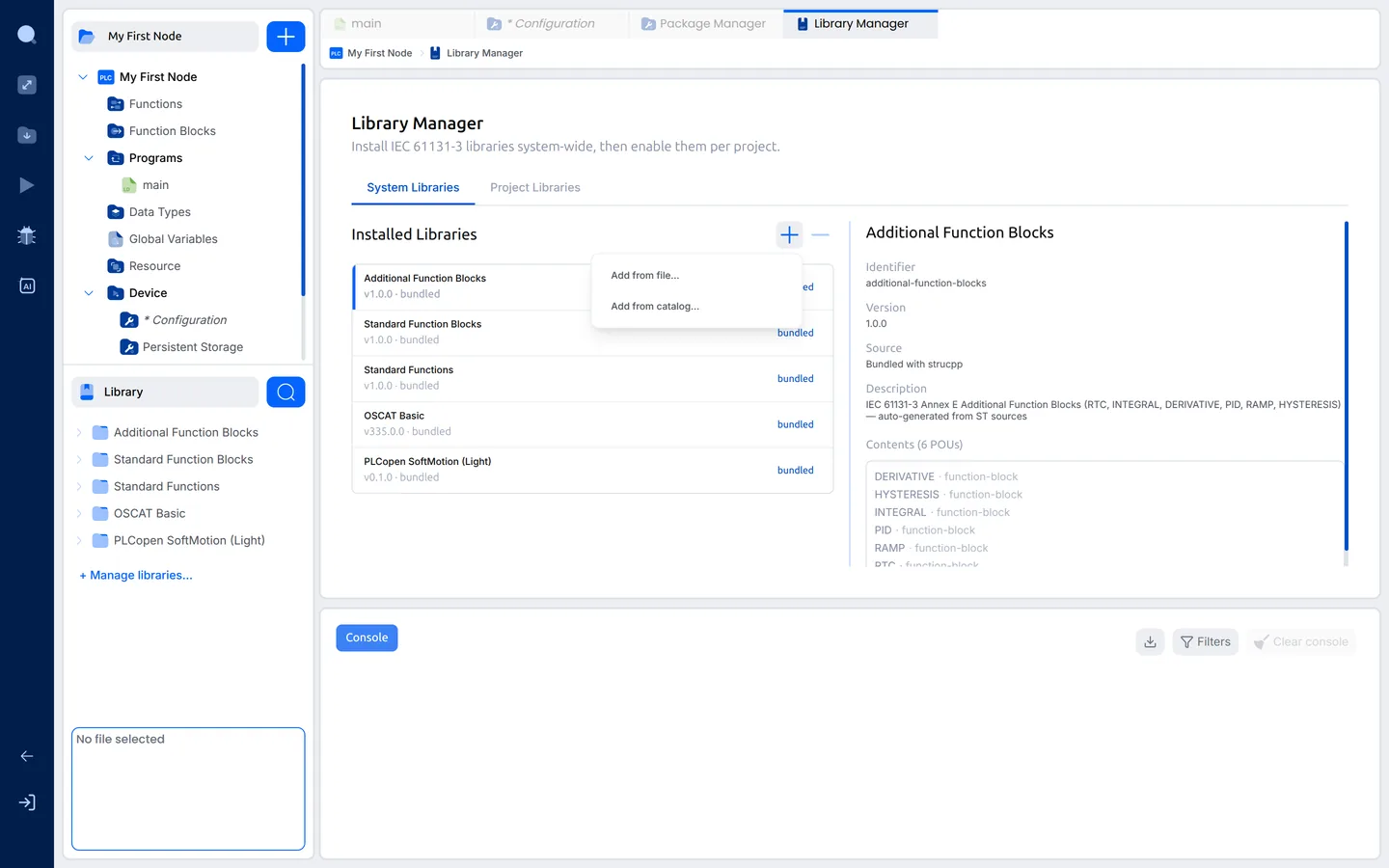
Click + and then Add from file….
-
Pick one of these:
modbee-openplc-libraries.zipinstalls every ModBee library in one
step. This is the easiest way.- One
.stlibfile installs that library on its own. Install the
libraries it needs as well. The release notes list them in the Needs
column, for example OTA needs MQTT, and ModBee Node UIO Web UI
needs ModBee Node UIO.
The new libraries join the list:
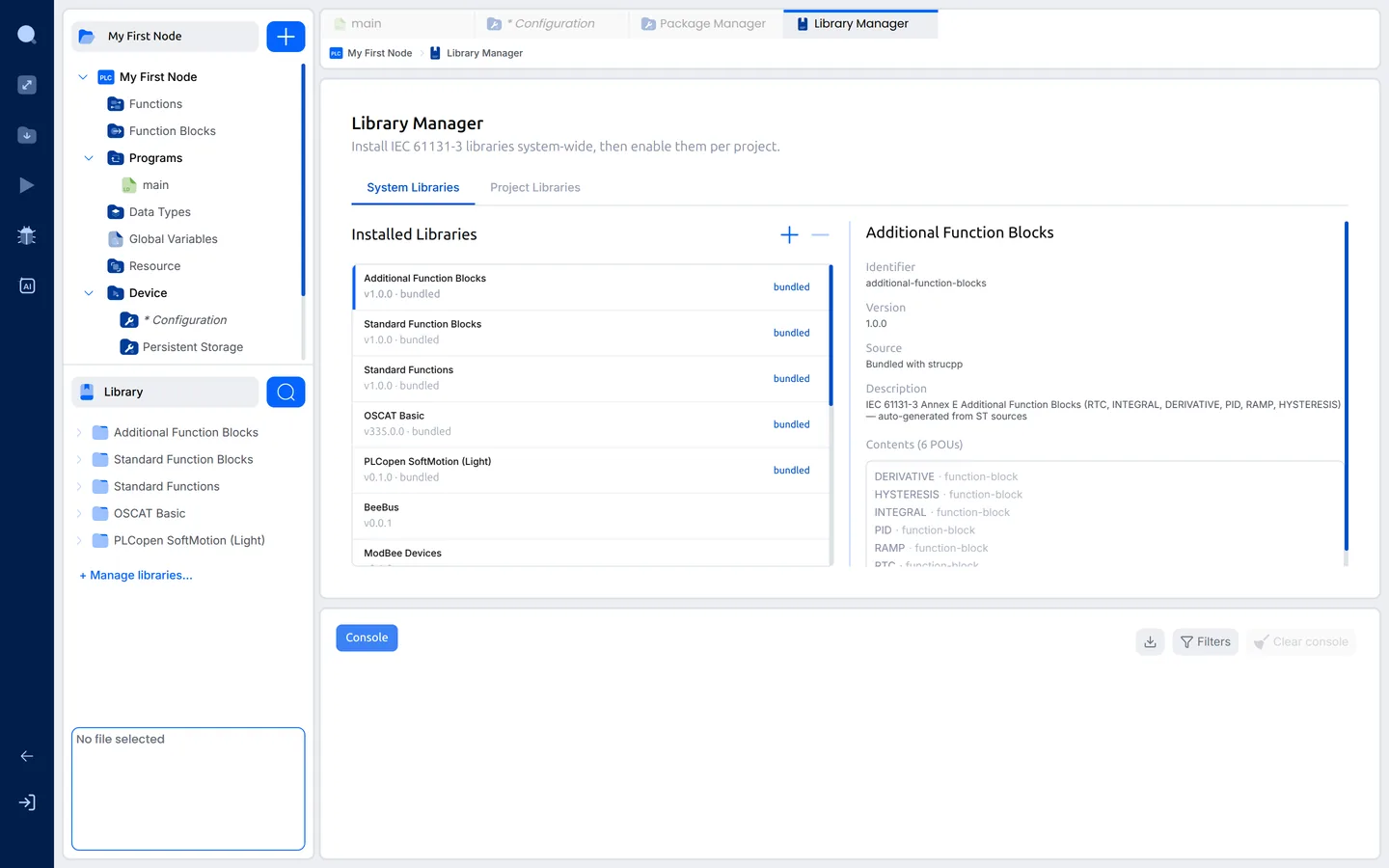
To update a library, install the newer file the same way.
Next: 3. First project