
3. First project
The project from page 2 still targets the OpenPLC Simulator and uses no
ModBee libraries. This page points it at the Node UIO, switches on the
library for the board's I/O, and explains the PLC tasks that run your
program.
Choose the board
-
Open Device › Configuration and click the Device box. The
MODBEE group now holds the ModBee Node UIO. Click it.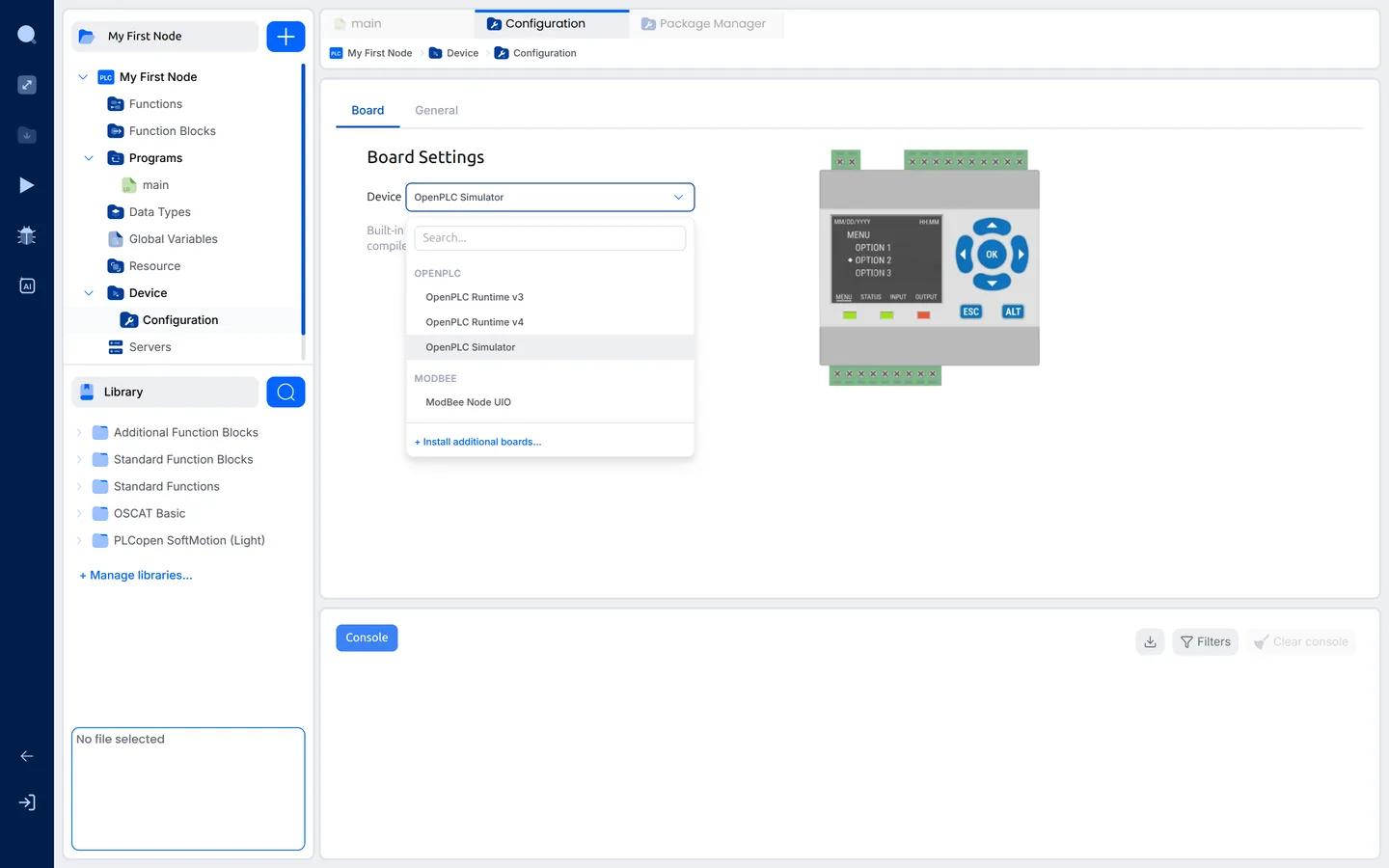
-
The board's settings and specifications appear:
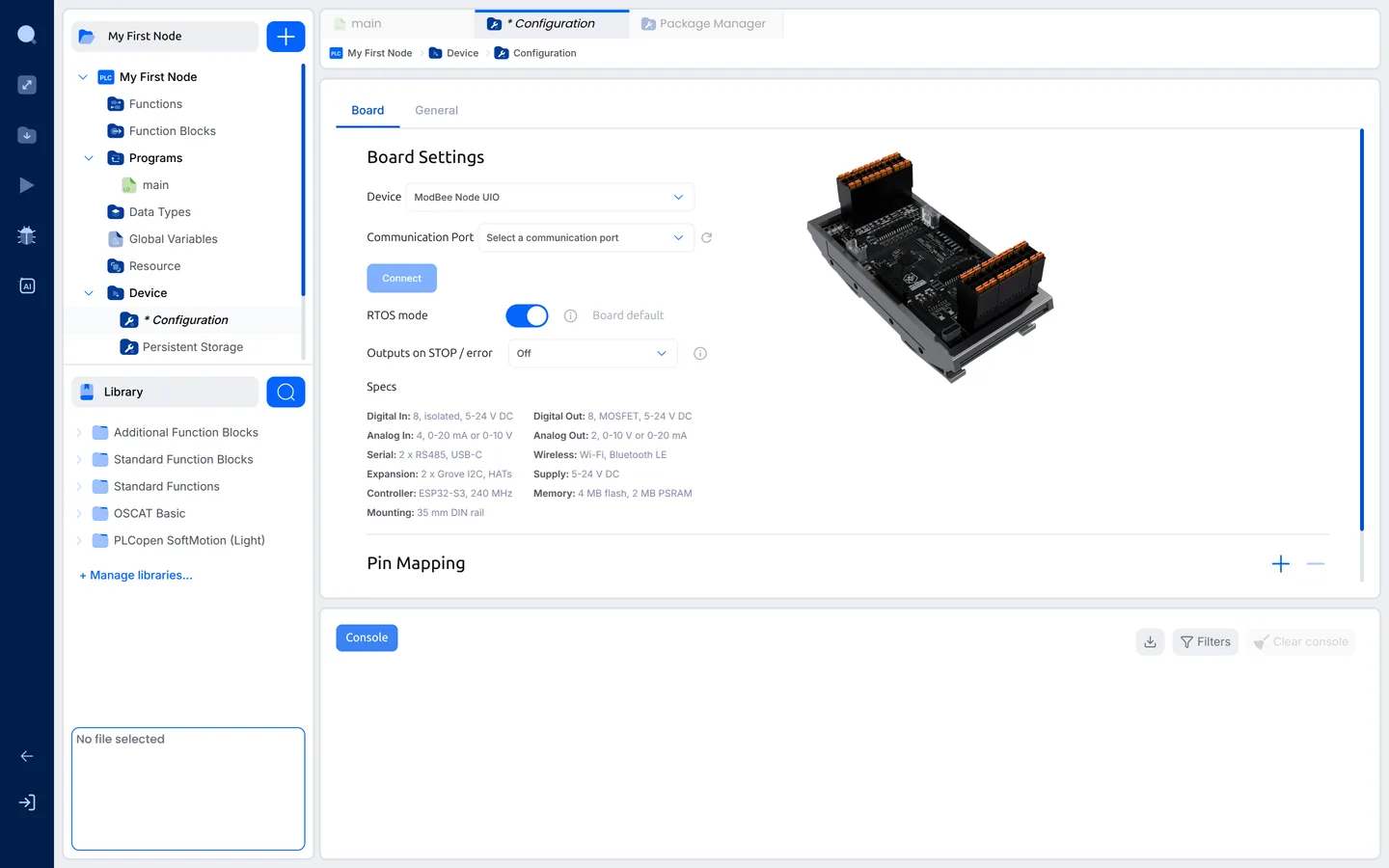
- Communication Port: the USB port the Node UIO is on. You set it on
page 4, when the board is plugged in. - RTOS mode: each PLC task runs as its own real-time task on the
board. Leave it on (the board's default). - Outputs on STOP / error: what the outputs do when the PLC is stopped
or goes into error. Off switches every output off, which is the safe
choice for most plant. Hold keeps each output at its last value. - Specs: what the board has, for reference.
- Communication Port: the USB port the Node UIO is on. You set it on
-
Save the project: File › Save Project (Ctrl+Shift+S).
Switch on the libraries the project uses
Installed libraries are available to every project, but a project only shows
the blocks of the libraries you switch on for it. That keeps each project's
block list short.
-
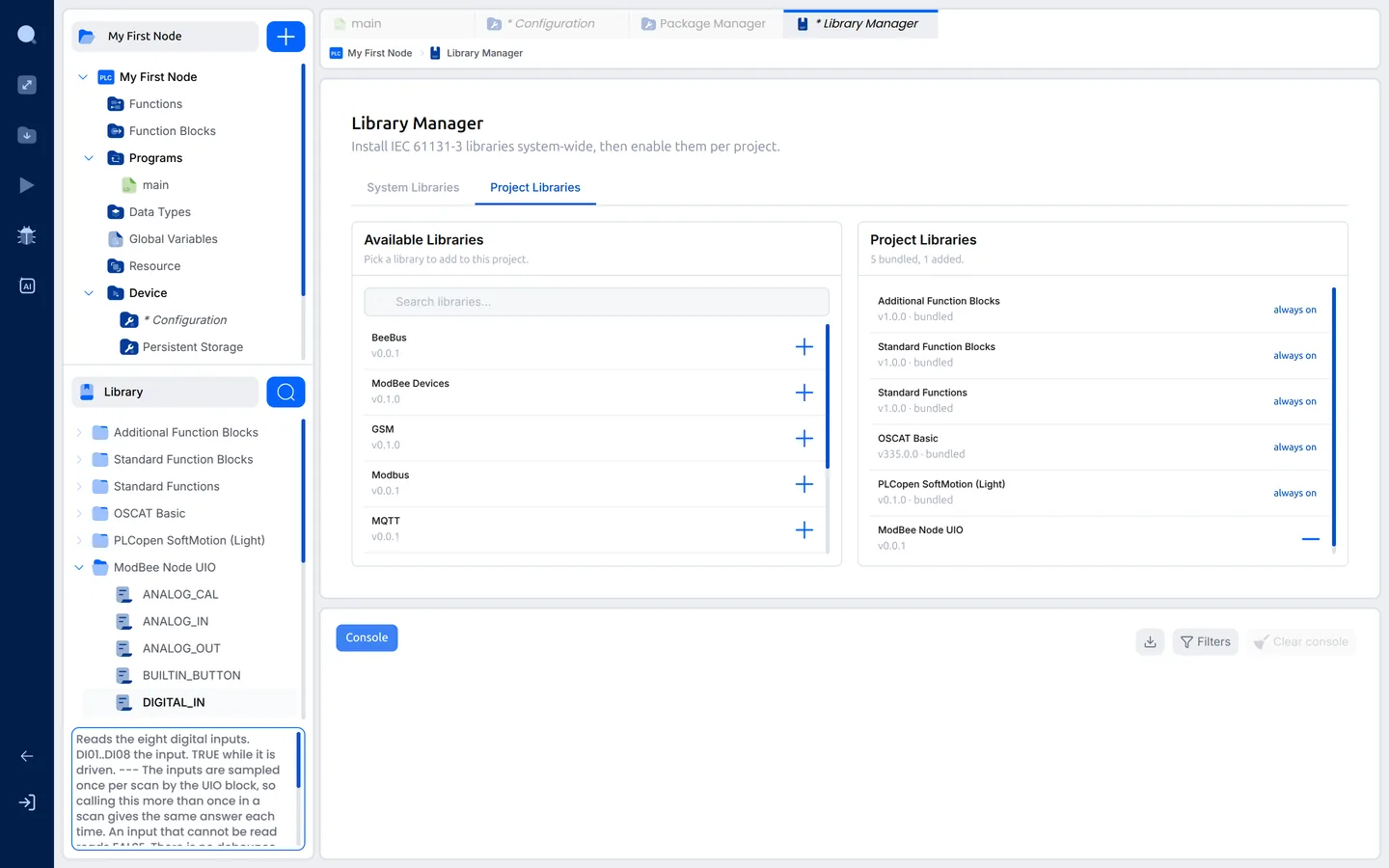
Click + Manage libraries… and open the Project Libraries tab.
Available Libraries on the left are installed but not used yet.
Project Libraries on the right are in this project. The bundled ones
are always on.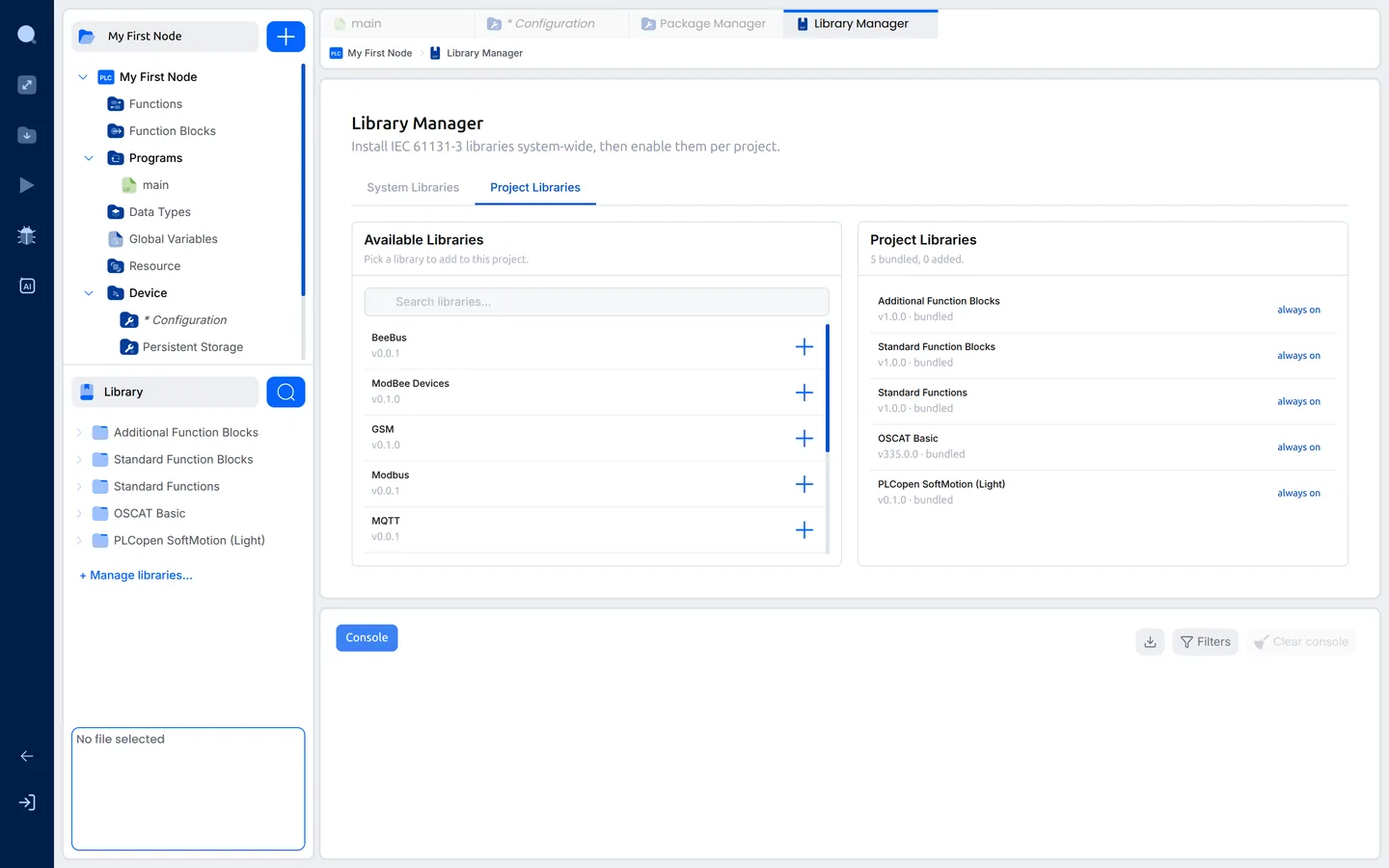
-
Type
UIOin the search box and click + next to
ModBee Node UIO. It moves to Project Libraries, and a
ModBee Node UIO folder appears in the Library panel with the
board's blocks.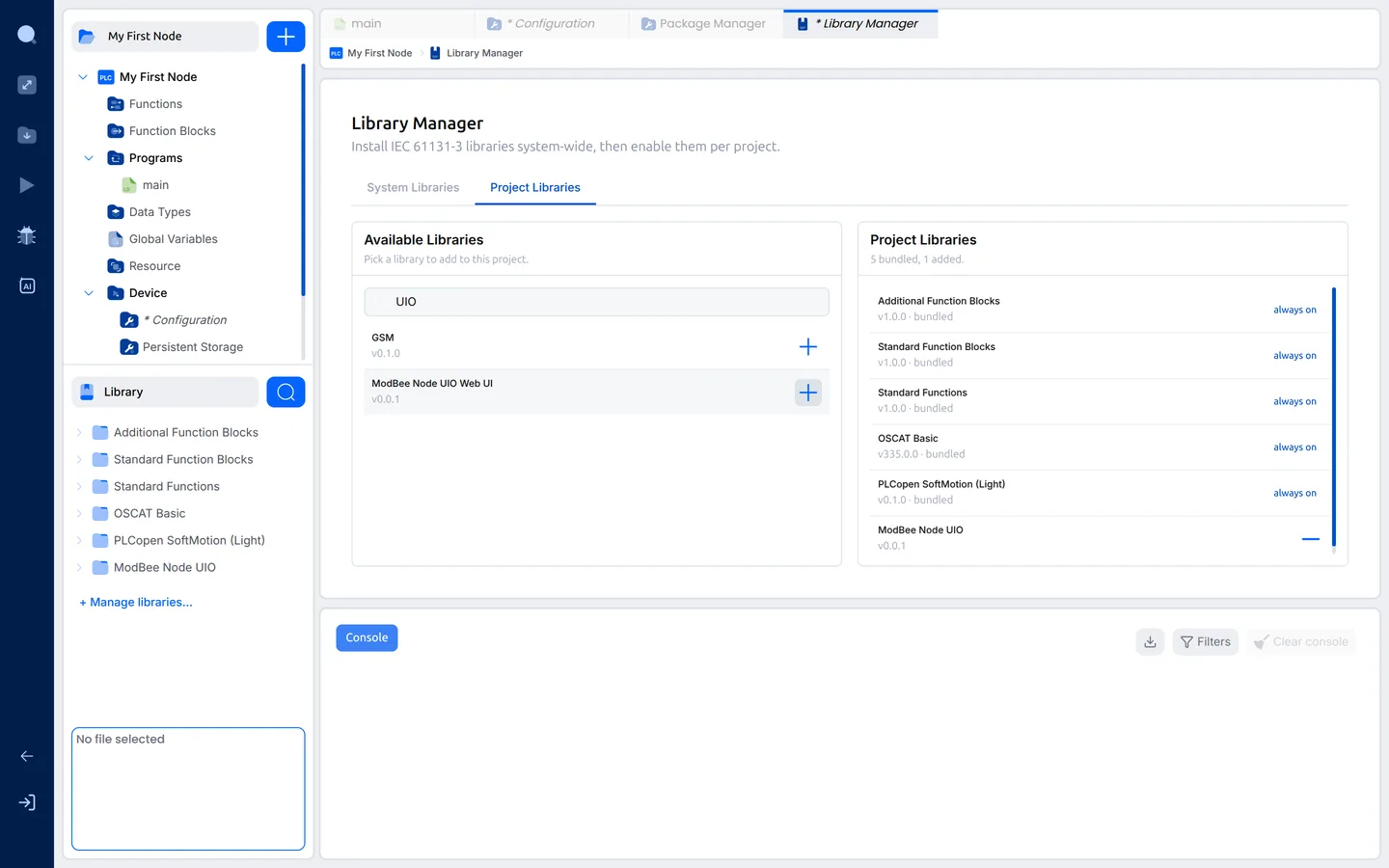
Open the folder and click a block to read what it does and what each pin is
for, in the box below the library tree:
Every Node UIO project needs ModBee Node UIO. Add the others when you
use them, for example Modbus for an RS485 sensor or MQTT to report to
a SCADA system.
PLC tasks
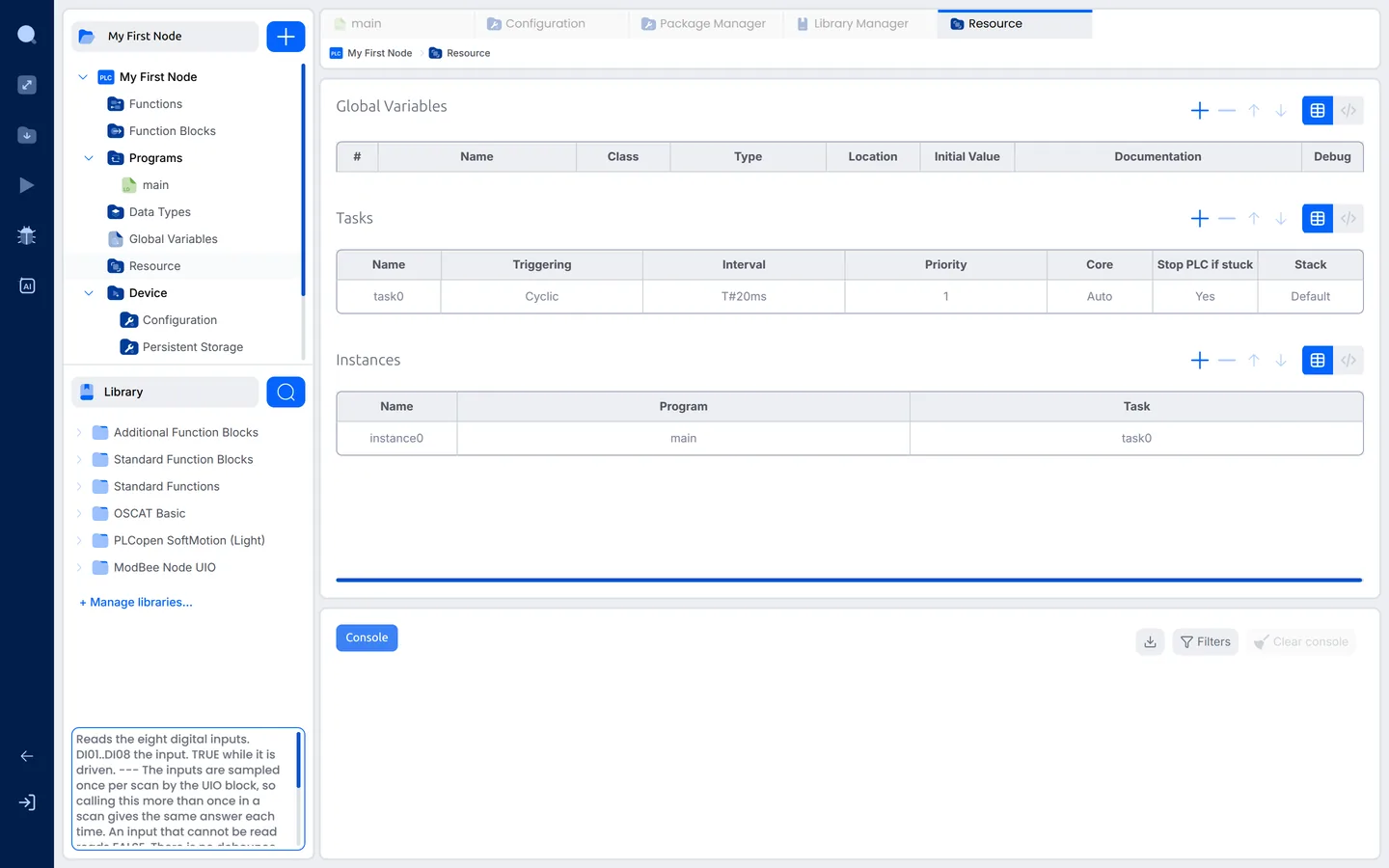
Open Resource in the project tree.
A PLC does not run your program once, like a script. It runs it over and
over. Each run is a scan: it reads the inputs, works through the program
and sets the outputs. A task decides when the scans happen.
The Tasks table has one task, task0, made by the New Project wizard:
| Column | Value | Meaning |
|---|---|---|
| Name | task0 |
The task's name. You can rename it, for example to LOGIC. |
| Triggering | Cyclic | Run a scan at a fixed interval. |
| Interval | T#20ms |
Time between scans: 20 ms is 50 scans a second. Fast enough for most plant. Use a shorter time only for fast signals. |
| Priority | 1 |
Which task goes first when two are due at once. 0 is the highest. |
| Core | Auto | Which processor core runs the task. Auto runs it on the core the PLC runtime starts on, which on the Node UIO is core 1, away from the Wi-Fi on core 0. Leave it on Auto, or set Core 1. |
| Stop PLC if stuck | Yes | If a scan never finishes, Yes stops the PLC, and the outputs go to the Outputs on STOP / error setting. No reports it and keeps the other tasks running. |
| Stack | Default | Memory for the task's working data. Default is the board's own size (16 KB on the Node UIO) and suits almost every program. |
The Instances table says which program each task runs: instance0 runs
the program main in task0.
One task is enough to start with. Larger projects often split the work
into two: a LOGIC task for the plant control, with a high priority, and a
COMMS task for Modbus, MQTT and HMI links, with a lower one. A slow
network then never holds up the control logic. Keep the board's I/O blocks
(UIO, DIGITAL_IN, DIGITAL_OUT and the others) together in one task.
Next: 4. First Ladder program